Drawing Clear Diagrams for Documentation Right with Symbols in ASCII Draw
Every time you need to draw a small architecture diagram right in code or in a README file, the struggle with spaces begins. You try to connect two rectangles with lines, add an arrow, fix one line, and the whole layout shifts three characters to the right. Web editors like asciiflow sometimes help, but dragging the diagram back and forth to the browser quickly gets tedious.
Recently I stumbled upon the ASCII Draw project by developer Nokse22. It's a native Linux application created specifically for drawing diagrams, tables, and text graphics using pseudographics.
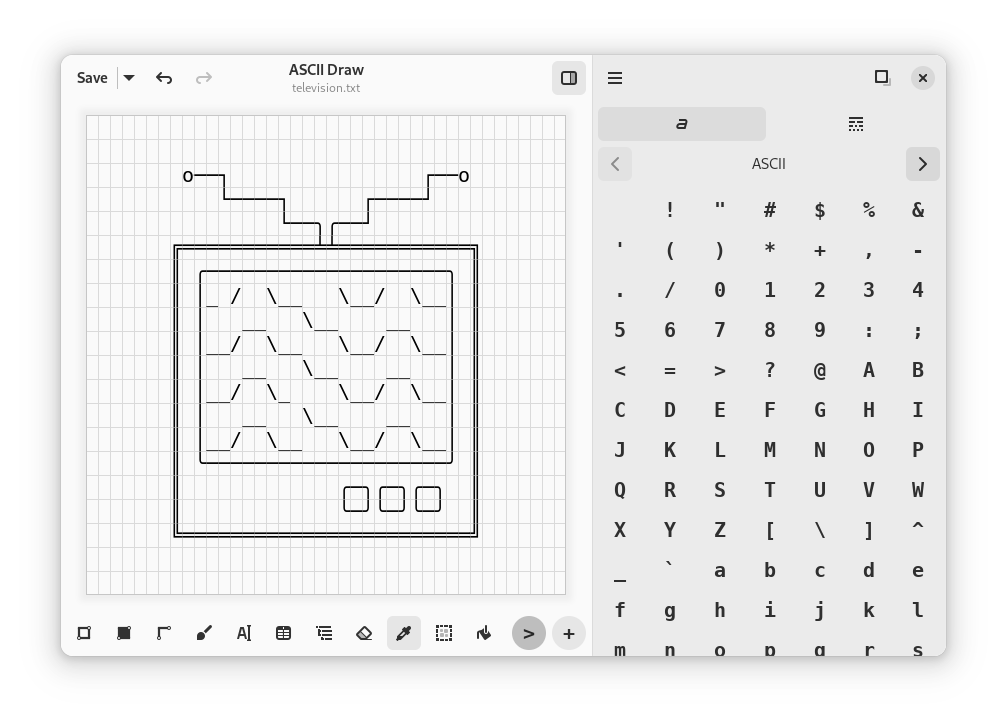
Why a developer should draw with symbols
Text graphics in documentation has one major advantage: it lives right in the repository as plain text. To view such a diagram, you don't need SVG rendering, external images, or Mermaid support from the hosting platform. The diagram opens in any terminal, any text editor, and with git diff you can immediately see exactly what changed in the architecture.
ASCII Draw provides a familiar graphical canvas where instead of pixels you work with a grid of monospace characters. You draw a block with the mouse, draw a line, add a label, and copy the result directly to the clipboard.
What the application can do
There are enough tools inside for most engineering tasks:
- Rectangles and blocks. Several border styles are available (single lines, double lines, rounded corners) and filling with a selected character.
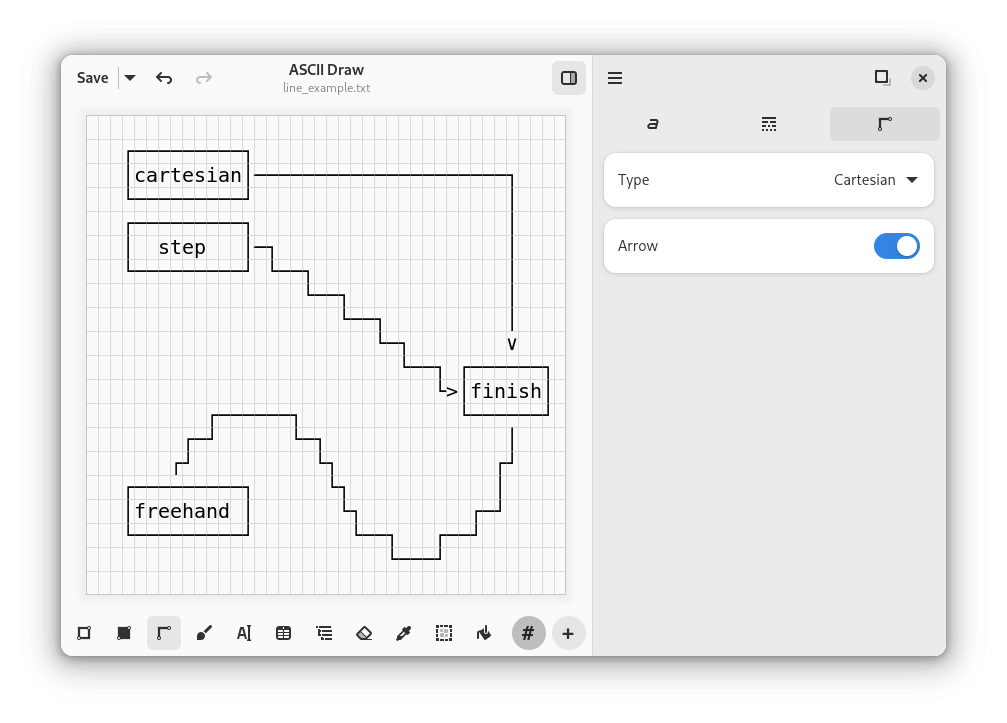
- Lines and arrows. You can draw straight Cartesian lines at 90 degrees, stepped connections between blocks, and freehand lines.
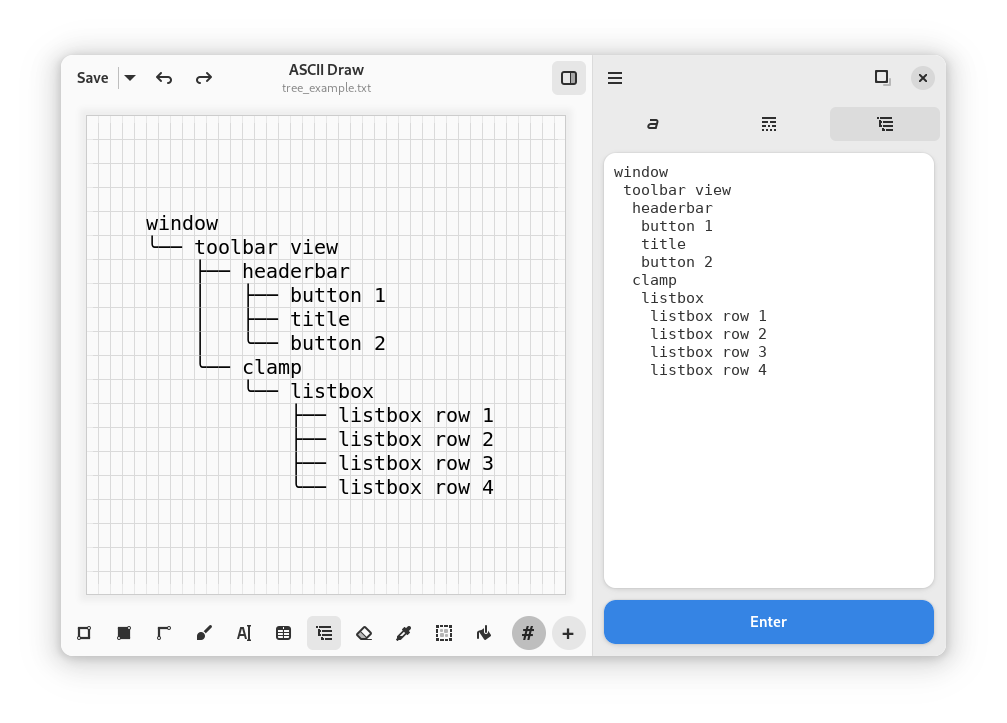
- Tree structures and tables. For directory listings or entity structures there are tree templates, and a table generator helps neatly align columns without manually recalculating spaces.
- Text and FIGlet fonts. Regular text can be turned into large decorative headers if you need to create a startup banner for a console utility.
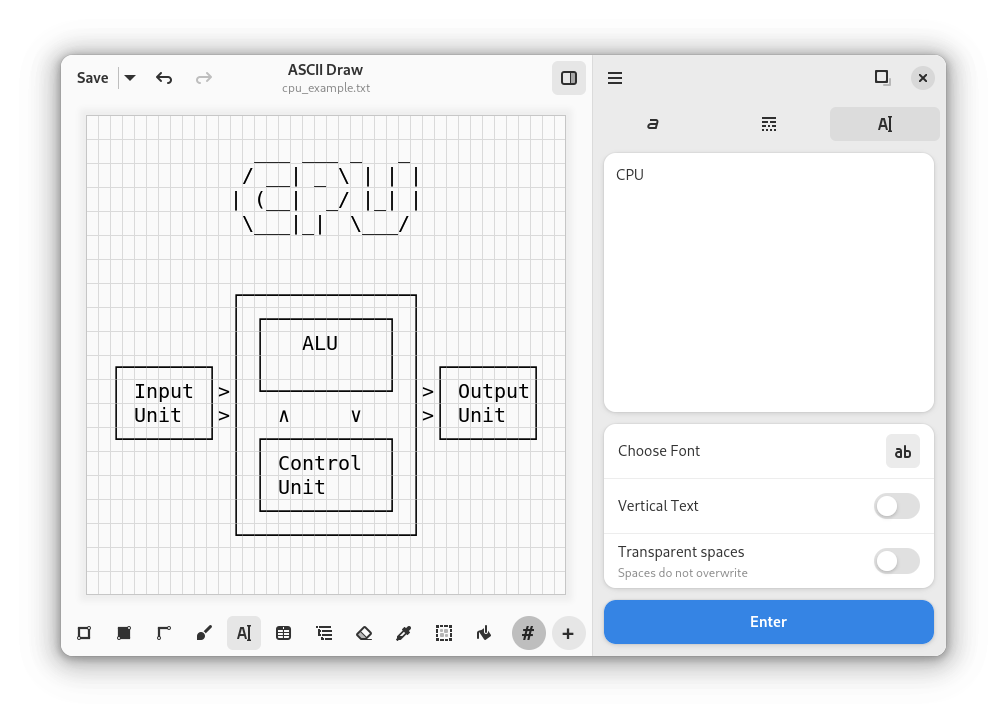
Canvas and tool set
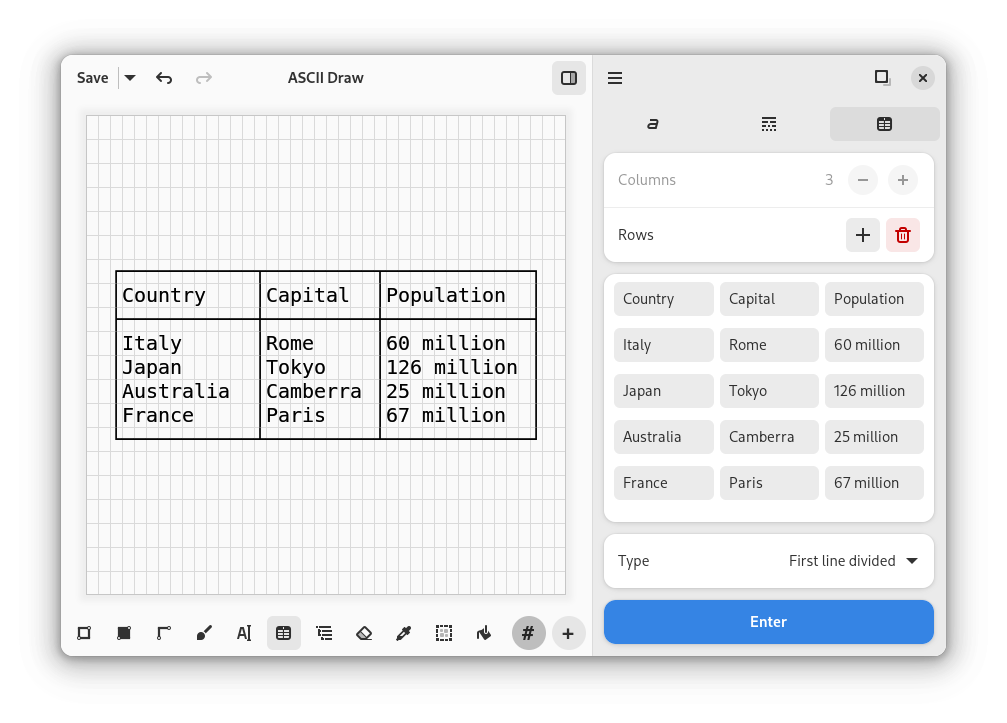
Fonts and label manipulations
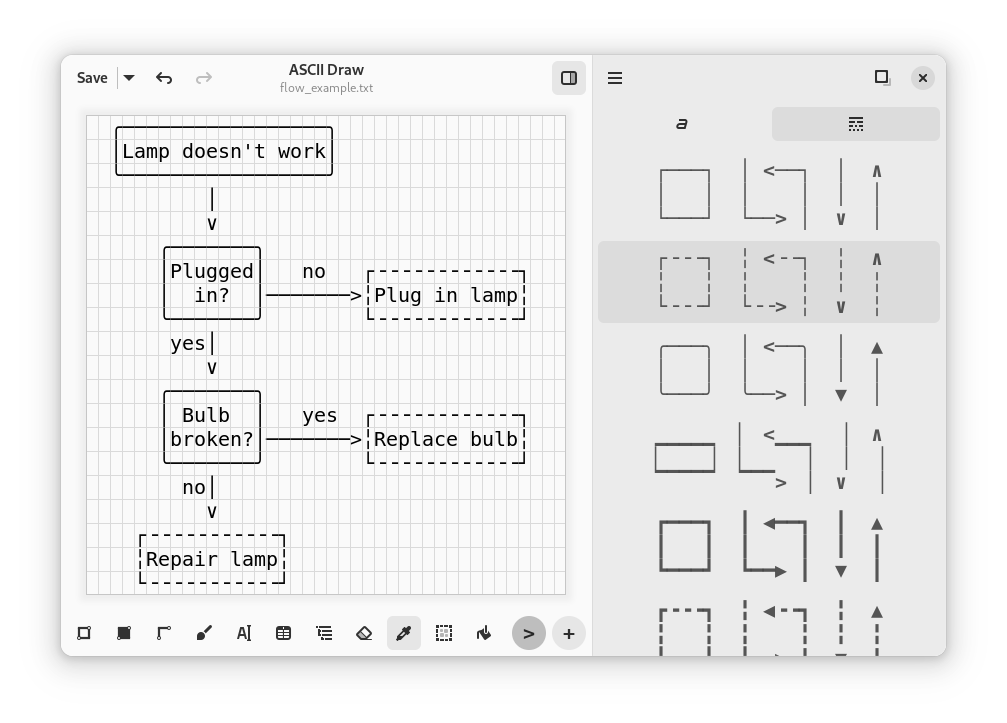
Catalog of available characters
Line style selection
Saving to file or copying to clipboard
Separate praise goes to the eraser, fill tool, and convenient fragment moving. If you need to move a block slightly lower, you simply select the area with a frame and drag it to the new position.
Under the hood
The project is written in Python 3.8+ using the GTK4 graphics stack and the Libadwaita library. The application fits perfectly into the GNOME environment, supports system themes and hotkeys.
For generating stylized text, the author connected pyfiglet, and for an extended character set used the emoji library. The project has an open license — GPL v3.0.
Where this comes in handy in practice
- Formatting README and architecture notes in the repository.
- Comments on complex code sections (for example, a finite state machine diagram or binary package format).
- Prototyping interfaces for TUI applications.
- Maintaining technical notes in plain-text and markdown knowledge bases.
How to install and try it
The easiest way for Linux users is to install the build from Flathub:
flatpak install flathub io.github.nokse22.asciidraw
flatpak run io.github.nokse22.asciidraw
If you want to build the project from source or make changes, just clone the repository:
git clone https://github.com/Nokse22/ascii-draw.git
cd ascii-draw
After that, the project can be opened in the GNOME Builder environment and launched with one button.
If you work on Linux and often write documentation directly in code, ASCII Draw is worth keeping handy. It's a neat specialized tool that solves one specific task and saves time when laying out diagrams. The main limitation of the project today is its focus on the GNOME and Linux ecosystem, so macOS and Windows users will need to find other options or run the utility through virtualization.
関連プロジェクト