An Unobtrusive AI Assistant Right on Top of Your Screen
Recently stumbled upon an interesting open-source project called cue. It's a small application that hovers as a semi-transparent window on top of all other programs, listens in on calls, watches your screen, and provides real-time hints. The most interesting part here isn't even the LLM integration, but how the utility hides itself from screen sharing in Zoom, Google Meet, or Teams.
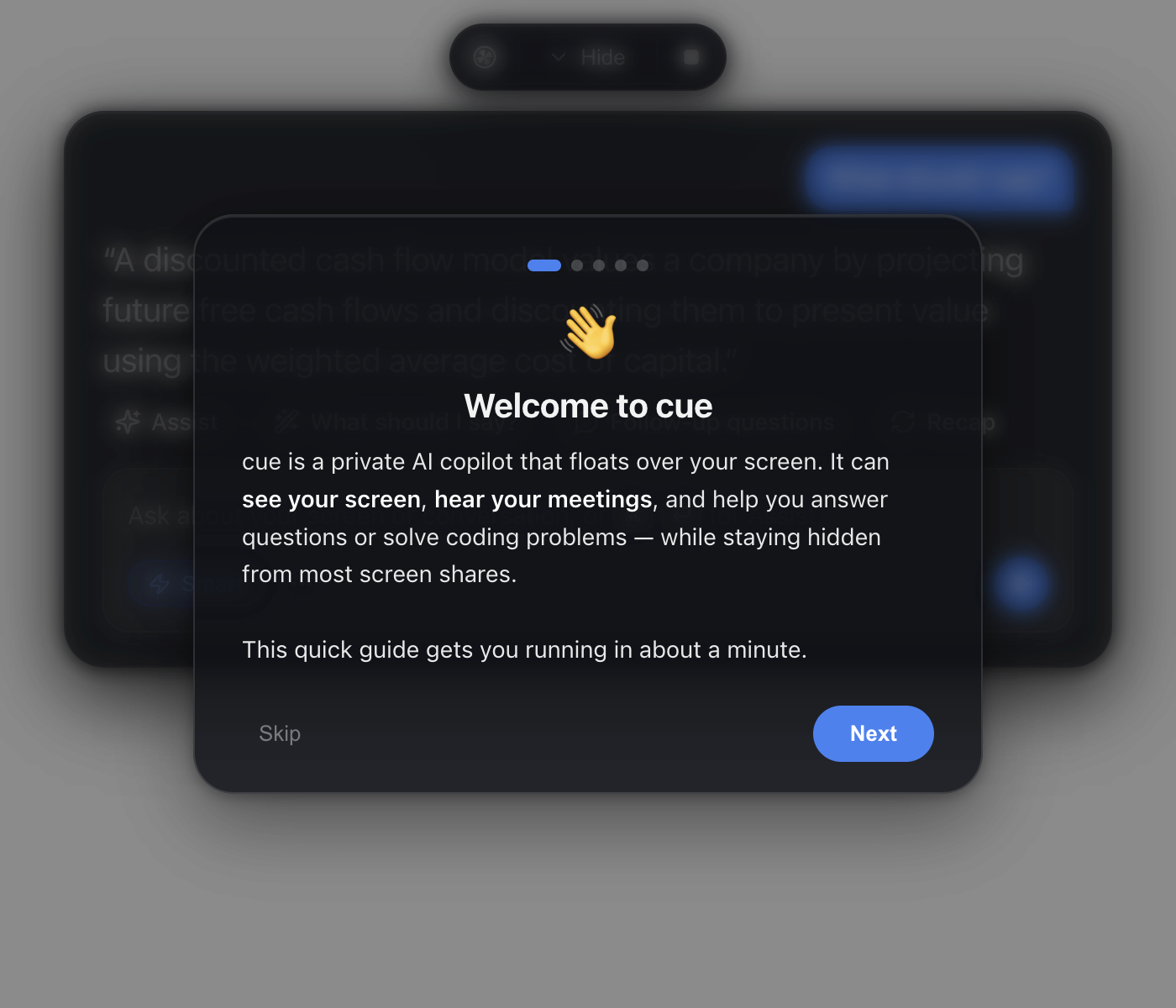
If you've seen paid services like Cluely or Interview Coder, the concept will feel familiar. The developer of cue decided to build a free open-source equivalent (GPL-3.0 license) where you can plug in your own API key and skip third-party subscriptions.
How this assistant works
The application splits incoming information into three independent streams.
First stream — your screen. The utility takes a screenshot when you press a hotkey or send a request.
Second stream — your microphone. cue listens to the computer owner's voice and transcribes speech to text.
Third stream — system audio (what the other participants are saying through your headphones). On Windows, system audio capture works via loopback without extra configuration. On macOS starting from version 14.4, it uses ScreenCaptureKit through Chromium flags.
The participant's and user's channels are processed separately, so the model knows exactly who said which line. Then the context is sent to the chosen language model, and the response streams word-by-word directly into the floating window.
What cue can do
The interface looks like a compact glass panel. The space around it is clickable, so it doesn't interfere with pressing buttons in your code editor or browser.
Here are the main usage scenarios:
- Breaking down tasks on screen. You press a key combination (Ctrl+H on Windows or Cmd+H on macOS by default), and the app captures the screen with code or task description and outputs the solution steps, working code, and time and space complexity estimates.
- On-the-fly dialogue hints. The "What should I say?" button analyzes the other person's recent lines and suggests a logical response.
- Summaries and questions. You can press a button to summarize the conversation or generate clarifying questions about the topic.
- Free-form question answering. You can type any question in the input field, combining the screenshot of the open window and the recent discussion history.
Settings include a resume field. You can paste your professional background there, and the assistant will draw on real experience when answering tricky questions.
Local transcription and model selection
The project follows a Bring Your Own Key (BYOK) concept. The author has no servers, there's no telemetry, and keys are stored locally in the cue-data.json file.
Supported providers include OpenAI, Anthropic Claude, Google Gemini, Azure AI Foundry, as well as any local or custom endpoints compatible with OpenAI Chat Completions (for example, Ollama or vLLM).
If you don't want to send the audio stream to the cloud, you can switch speech transcription to whisper.cpp. In the audio settings, you select local mode and download the needed model, from the base base.en to multilingual and quantized variants. The application spins up a local whisper-server process on a temporary port and queues audio through it. Audio data isn't written to disk, staying only in RAM.
How the window stays invisible during screen sharing
The most interesting technical detail of cue is its protection from appearing in screenshots and streams. It's not a graphics card trick or a transparency hack.
Inside Electron, the setContentProtection(true) method is called, which directly accesses system-level mechanisms of the operating system:
- On Windows, the
SetWindowDisplayAffinitycall is used with theWDA_EXCLUDEFROMCAPTUREflag. Windows' window manager (DWM) simply excludes the window from all capture streams. In older Windows 10 builds (before 2004), this resulted in a black rectangle, but on newer versions the window becomes completely invisible to capture. - On macOS, the
NSWindowSharingNoneflag is set. It tells the window server to hide the window from streams. However, starting with macOS 15.4, Apple slightly changed the API behavior, so on recent releases, 100% invisibility isn't guaranteed.
There's a nuance for Zoom. In the client settings, you need to enable the advanced mode with window filtering:
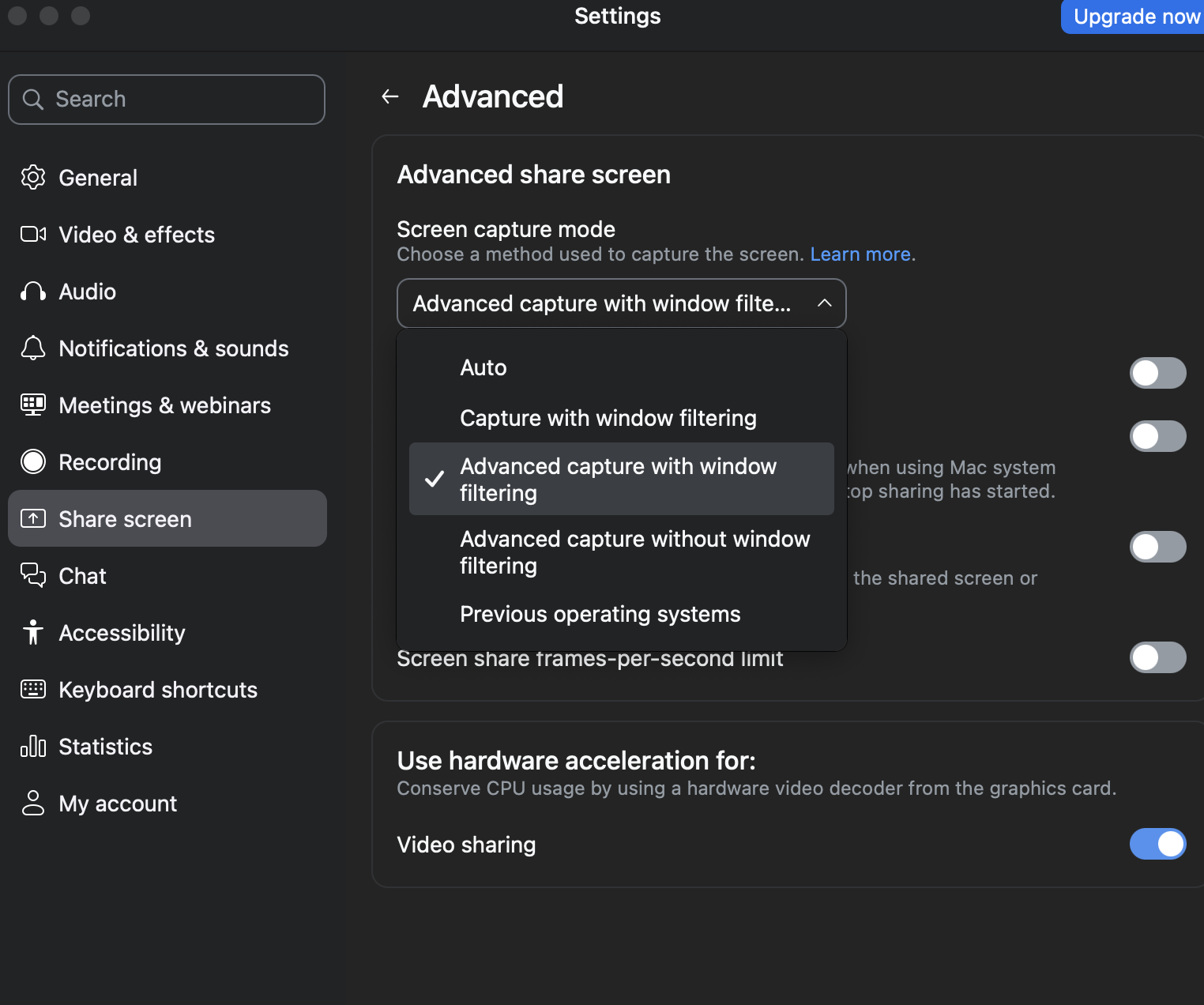
Without this checkbox, Zoom tries to capture the raw screen bypassing window privacy filters. For Google Meet and Microsoft Teams, no additional configuration is needed — they respect system flags by default.
Installation and running
The easiest way is to grab a ready-made binary from the releases page of the repository. Builds are available for Windows x64 and macOS on Apple Silicon processors.
If you want to build the project from source, you'll need Node.js version 22.12 or newer. The build doesn't require heavy native toolchains, as the author intentionally wrote the client in pure HTML, CSS, and JS without extra frameworks:
git clone https://github.com/Blueturboguy07/cue.git
cd cue
npm install
npm start
If you're planning to use local Whisper from source, you need to prepare the binaries before the first launch:
npm run prepare:whisper
After starting the application, you'll need to grant microphone and screen recording permissions (on macOS), then paste your API key in the settings.
The bottom line
cue is a clear example of how standard Electron and system API features can be combined to build a handy companion for calls, brainstorming, or solving technical problems. The code in the repository is compact and well-readable, so the project is also great for anyone who wants to understand audio stream capture and window visibility control in desktop applications.
Related projects