How to Compress Hundreds of Images Without Quality Loss Using Caesium
Recently, I was cleaning up an old project that had accumulated several gigabytes of assets: banners, documentation screenshots, article previews. Sending this to a repository or uploading to a bucket without optimization is a surefire way to bloat your build and burn through user traffic. Writing a custom script based on ImageMagick for a one-off task is tedious, and cloud services like TinyPNG quickly hit free tier limits or require sending confidential files to external servers.
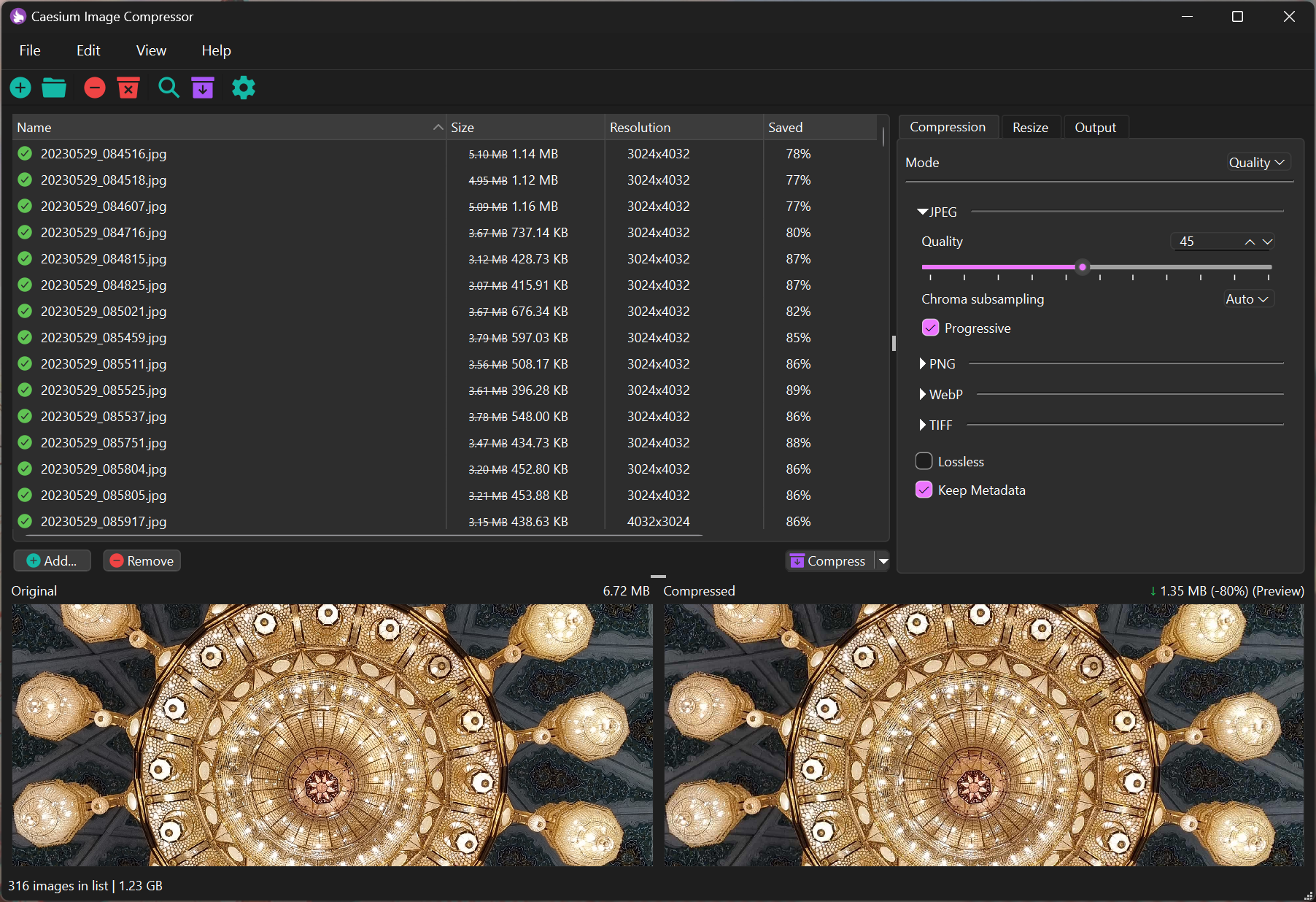
In situations like these, Caesium Image Compressor comes to the rescue. This is an open-source desktop tool that handles batch image compression right on your computer.
What's under the hood and why you need it
The project has been developed by a developer going by the handle Lymphatus for many years. The first version once gained popularity thanks to its simplicity, but starting from the second branch, Caesium was rewritten almost from scratch.
The architecture here is interesting:
- The GUI is written in C++ using Qt6.
- Compression and processing are handled by a separate library
libcaesium, written in Rust.
The Qt and Rust combo gives the app fast multithreading performance and low memory consumption, even when you throw hundreds of heavy screenshots into the queue.
Key features
Support for popular formats
Caesium can handle JPG, PNG, and WebP (the repository description also mentions TIFF). You can simply drag a batch of mixed files into the program window and apply shared settings, or configure processing separately for each format.
Flexible quality and compression control
The utility supports both lossless compression and controlled quality loss compression (lossy). The interface clearly shows the difference: size before and after, space savings percentage, and a preview of the result.
On-the-fly resolution resizing
Often designers or content managers save layouts at 4K or 8K resolution, even though 1200px width is sufficient for the web. In Caesium, you can set resizing by percentage or fixed dimensions, with aspect ratio preserved.
Complete autonomy
All computations happen locally. If you need to quickly optimize a few images on someone else's computer, the project has a web version at caesium.app, but the main advantage of the desktop client is network independence and processing speed.
Building from source
For Windows and macOS, ready installers and portable versions are available in the GitHub releases. Linux users often have to build the application themselves or use third-party builds.
Building requires a Rust compiler (cargo), CMake, and Qt6 SDK (version 6.8+).
Configuration for Linux:
cmake -B build_dir -DCMAKE_PREFIX_PATH=/path/to/Qt/version/gcc_64
For Windows via MinGW:
cmake -B build_dir -DCMAKE_PREFIX_PATH=/path/to/Qt/version -G "MinGW Makefiles"
After which compilation is started:
cmake --build build_dir --config Release --target caesium_image_compressor
An interesting point: the author is currently actively collecting feedback and preparing the major v3.0.0 branch, with discussions happening in the repository issues.
Who will find this utility useful
Caesium fits perfectly into the workflow of web developers, blog authors, photographers, and technical writers. If you regularly need to prepare graphics for releases, documentation, or static sites without setting up complex console pipelines, this tool saves a lot of time. Just drag a folder of images into the program window, press one button, and get clean optimized assets.
Related projects