How to Turn an Old Android into a Crisp Webcam for Windows Without Ads or Watermarks
Buying a decent external webcam today is a questionable pleasure. Budget models deliver blurry 720p pictures with terrible dynamic range, while decent options like Logitech solutions cost unreasonable money. Meanwhile, most of us have an old smartphone gathering dust in a desk drawer, whose optics and sensor far outperform any office webcam.
Usually, trying to use a phone as a webcam runs into proprietary software like DroidCam or Iriun. The free versions either cap resolution, slap watermarks right over the video, or constantly display ads. I recently discovered an open-source project called VCamdroid, whose creators solved this problem directly without unnecessary commercial fluff.
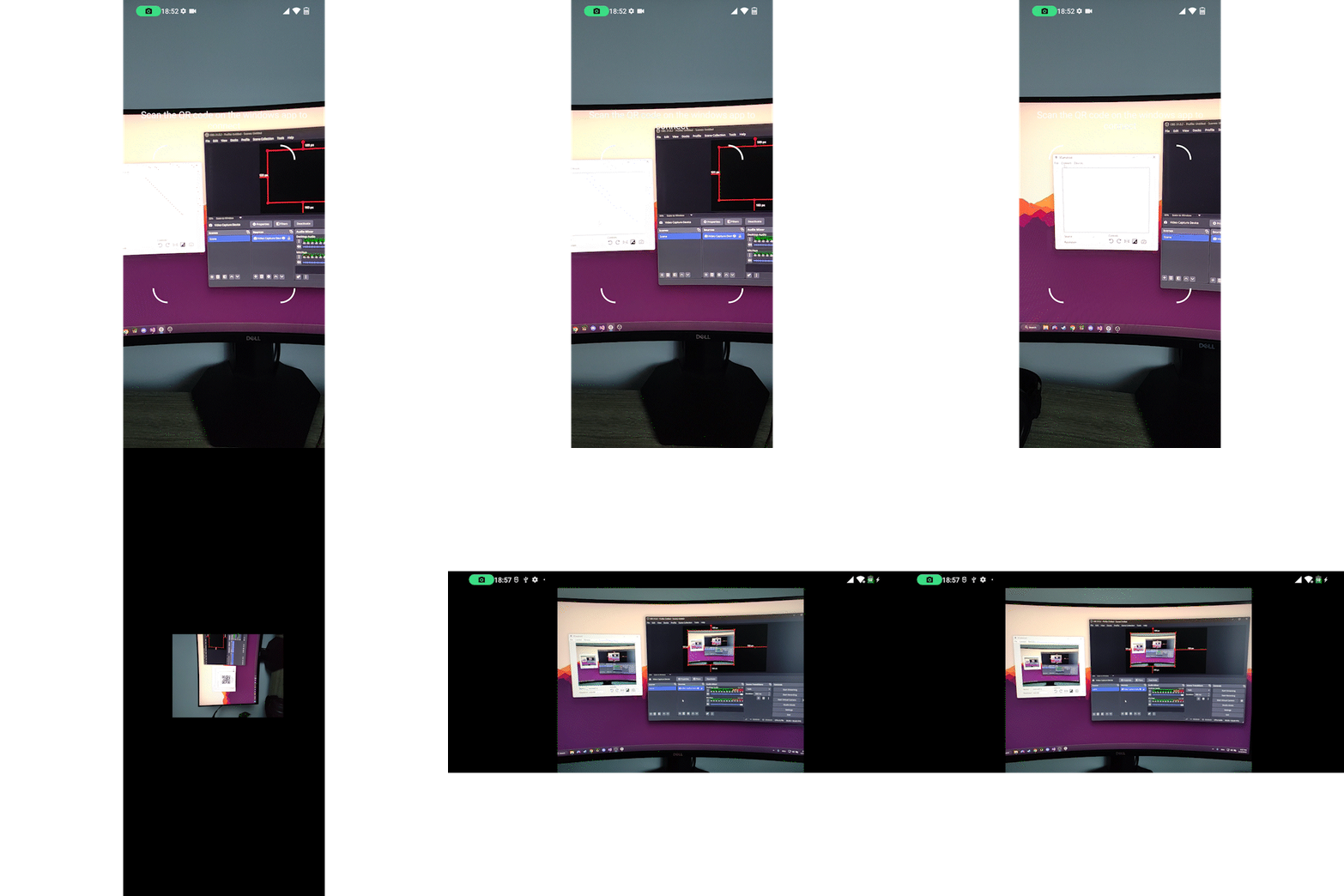
What's under the hood
The project consists of two parts: a Kotlin Android app and a C++ Windows client. The principle of operation is quite elegant.
The phone captures the stream via Camera2 API, processes frames on the fly through OpenGL shaders (rotation, mirroring, color and exposure correction happen there), and feeds the result to the MediaCodec hardware encoder in H.264 or H.265. The RootEncoder library handles packaging the video stream into RTP, after which the phone spins up an RTSP server.
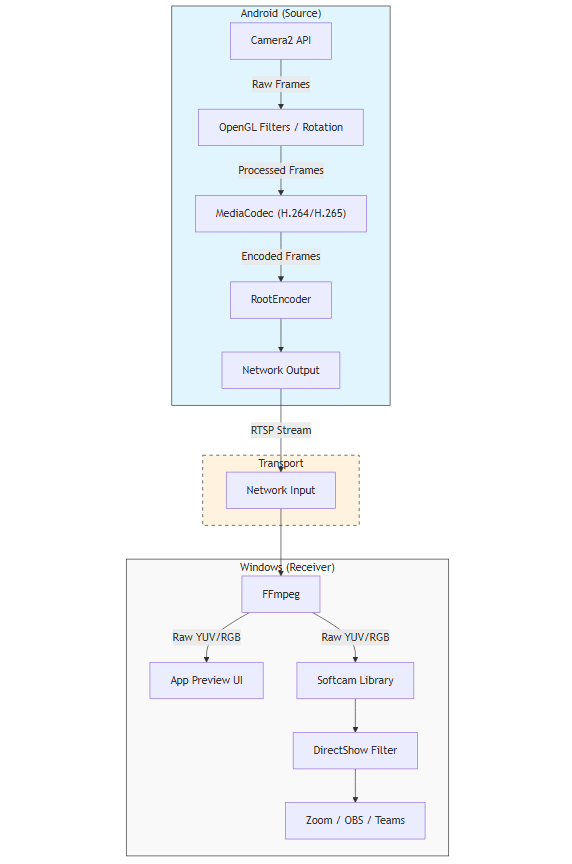
On the Windows side, the client connects to the stream via FFmpeg, decodes the frames, and sends them to a virtual DirectShow device. This uses the Softcam library, which registers the softcam.dll driver. Any program on the PC — whether OBS, Zoom, Telegram, or Discord — sees the smartphone as a regular physical USB webcam.
Wired and wireless connectivity
You can stream video in two ways:
- Over Wi-Fi. The computer and phone must be on the same subnet. Open the Connect tab in the desktop client to see a QR code, point the phone camera at it, confirm the connection, and the broadcast starts.
- Over USB via ADB. This is the main and most reliable scenario. Over cable, latency is minimal and the signal doesn't suffer from a 2.4 GHz band clogged with neighbors' routers.
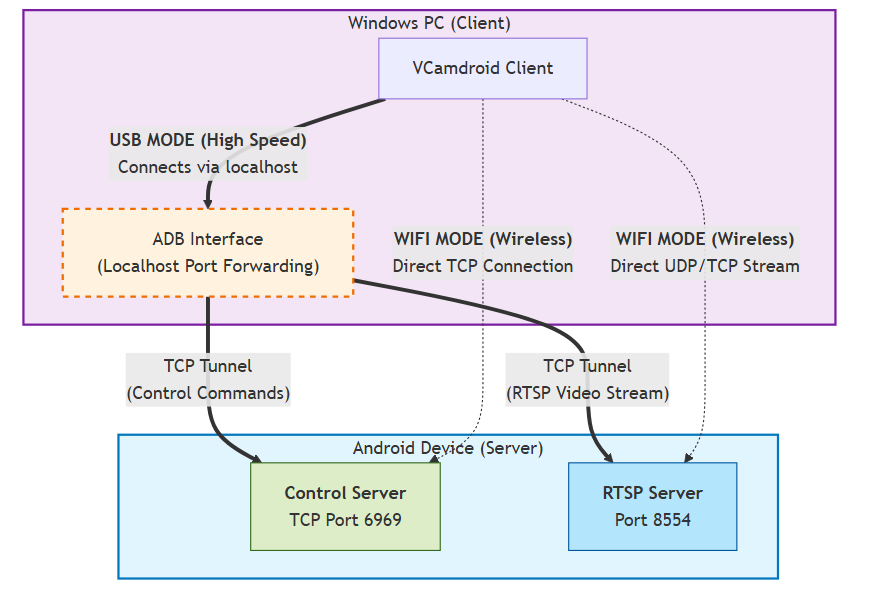
Interesting engineering detail: the ADB utility can only forward ports over TCP. By default, RTSP often shuttles RTP packets over UDP, but here the stream is tunneled strictly over TCP interleaved mode. This gives us a stable channel right through localhost without packet loss.
What makes this project interesting in practice
Unlike bulky solutions, VCamdroid sets up quickly and requires no accounts.
Here's what the combo can do:
- Switch between front and rear camera modules directly from the PC during a call.
- Control the flashlight, zoom, exposure, and white balance.
- Hardware-accelerated image processing on the phone's GPU, so the computer's processor is barely loaded.
- Connect multiple phones simultaneously. You can hang one smartphone for a wide shot, point the second at your face, and switch between them.
The picture comes out clean, with true 1080p and 60 fps if your phone's sensor supports it.
Quick start
You'll need Windows 10 or 11 on the PC and Android 7.0 or newer on the phone.
First, set up Windows:
- Download the archive from the Releases page of the repository.
- Extract and run
install.batas administrator. This script registers the DirectShow filter in the system. - In the Windows Firewall window, allow the app access for both private and public networks.
Next, install the client on the phone:
- Enable Developer mode on Android (tap the build number in the phone settings seven times) and activate the USB Debugging toggle.
- Connect the phone to the computer via cable and run the
install_apk.batscript. It automatically pushes the APK to the device via ADB.
After that, open VCamdroid on the computer, launch the app on the smartphone, and they automatically find each other over the cable.
Building from source
If you want to dig into the code or add a feature you need, the project builds with standard tools.
For the Android part, you'll need a fresh Android Studio. All capture and streaming logic is bundled in the android/ directory.
For the Windows client, you'll need Visual Studio and the vcpkg package manager. Dependencies are pulled in with one command:
vcpkg install wxwidgets:x64-windows ffmpeg:x64-windows
vcpkg integrate install
Then build the softcam library, open windows/VCamdroid.sln, select the Release x64 configuration, and compile the project.
Limitations and rough edges
The project has around 400 stars on GitHub, and the code is still relatively fresh in places. If you have a rare or specific Android firmware, MediaCodec may behave unstably.
Sometimes Windows Firewall silently blocks RTSP traffic when working over Wi-Fi. In this case, you have to dig into the Defender settings manually or check pings via adb shell ping. Also keep in mind that the DirectShow filter requires up-to-date Visual C++ Redistributable libraries on the PC, otherwise the app will just crash without a meaningful error.
VCamdroid is a great fit for anyone tired of the quality of built-in laptop webcams or who doesn't want to spend money on separate optics for occasional calls. The project is completely free, open-source under the MIT license, with no time restrictions and no watermarks. If you have an old smartphone with a decent camera gathering dust on a shelf, this is a great way to bring it back into service.
Related projects