How to Run Desktop Chrome Extensions on Android Without the Hassle
Have you ever been using mobile Chrome and caught yourself thinking: "If only I could have my favorite ad blocker or password manager here"? Google has been ignoring extension support in the mobile version of its browser for years. Sure, there are Kiwi or Yandex Browser, but if you're used to vanilla Chromium or care about privacy, your options narrow.
Recently I stumbled upon the Titanium Browser project. It's a fork of Vanadium (the secure browser from GrapheneOS), with something we've been missing added — full extension support.
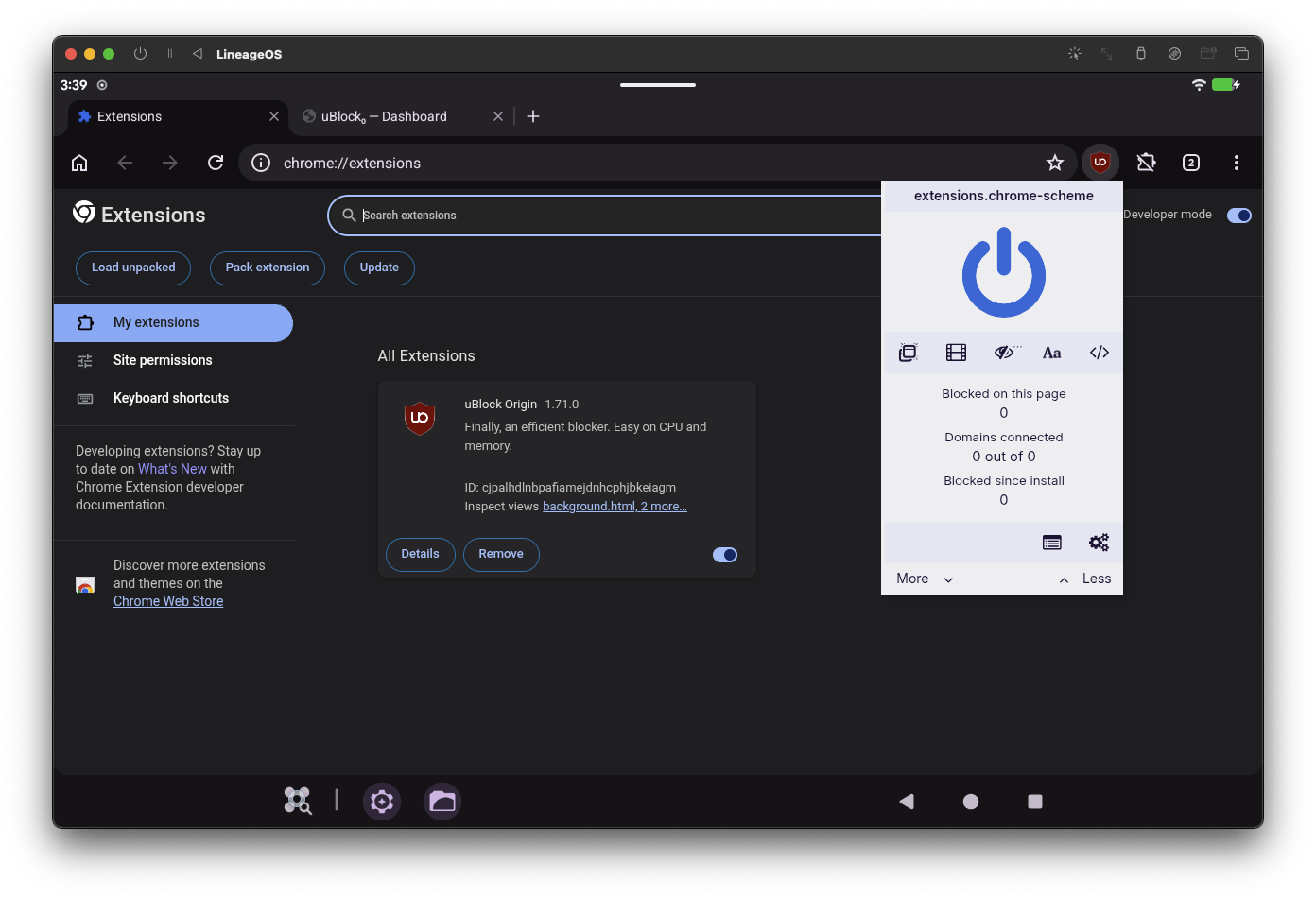
What Is This Thing
Titanium Browser is an attempt to sit on two chairs at once. On one hand, it builds on GrapheneOS's security work. On the other — it gives you the freedom to install any add-ons directly from the Chrome Web Store.
Previously the project was called Helium, but due to brand confusion the author renamed it to Titanium. The main feature here is modularity. To keep the main browser fast and "native," advanced features are moved to a separate Titanium Extension.
How Extensions Work on a Small Screen
The most interesting part is the installation process. There's no "only from our whitelist" restriction. You simply go to the Chrome Web Store, switch the page to desktop mode, and hit that good old install button.
Interesting points about working with add-ons:
- Manifest V2 (MV2) support is preserved, which is critical for many powerful ad blockers.
- You can load unpacked extensions from local folders via developer mode. This is useful if you write code yourself or found something useful on GitHub.
- Third-party stores like Opera Add-ons or Microsoft Edge Add-ons are supported, although User Agent spoofing may be required there.
By the way, if you need an extension to work in incognito mode, that's enabled separately in each add-on's settings. A small thing, but mobile browsers often forget about this.
Security and "Under the Hood"
The author honestly warns: if you need absolute kernel-level protection, you're better off using the original Vanadium on GrapheneOS. Titanium is more about balancing convenience and privacy for regular Android.
Several important patches are implemented inside the browser:
- Fixes for proper extension UI work on mobile devices.
- Secure installation of add-ons from non-official stores.
- WebRTC IP Policy settings. By default, the browser hides your real IP, which sometimes breaks voice chats (for example, in Discord). This is easily fixed in privacy settings.
The build scheme looks logical: Chromium is used as the base, Vanadium security patches are applied on top, and then specific fixes for extension work and custom UI are added.
Who Will Find This Useful
I see two main use cases. The first — you're a frontend developer and need to check how your extension behaves on mobile Chromium. The ability to load an "unpacked" build via SAF (Storage Access Framework) saves a lot of time.
The second scenario — you just want a normal browser without tracking, but with your familiar uBlock Origin or Dark Reader.
How to Try It
The project lives on GitHub, and the ready APKs are there too. What's nice, the author set up automated builds via GitHub Actions, so you can verify the build's authenticity via GitHub CLI:
gh attestation verify *.apk -R jqssun/android-titanium-browser
If you're a paranoid person (in a good sense), you can fork the repository, add your keys to secrets, and build the browser yourself via the same Actions.
In the end, we have a solid open-source project with 1.5k stars that solves the specific problem of missing extension support in Google's ecosystem. Yes, the documentation is sometimes laconic, but for those who understand why they need chrome://flags on their phone, this won't be an obstacle.
Projetos relacionados