How to organize a dozen running Claude Code sessions in tmux
When you launch Claude Code in the terminal for a few quick edits, everything looks tidy. Run the command, give it a task, wait for the response, close it. Problems start when you keep four or five projects open at the same time. In one repository, the agent is refactoring tests, in another it's writing a database migration, and in a third it's running a build.
Within half an hour, the terminal becomes a maze. It's unclear where the agent is waiting for command confirmation, where it's still running scripts, and where it finished long ago and is just sitting idle. You have to manually cycle through tmux windows, wasting time checking statuses.
Tak Matsuyama, author of the devas. life blog and several popular utilities for Neovim and tmux, rolled out a solution to this problem. His plugin tmux-claude- session-manager transforms scattered terminal windows with agents into a tidy list with quick switching.
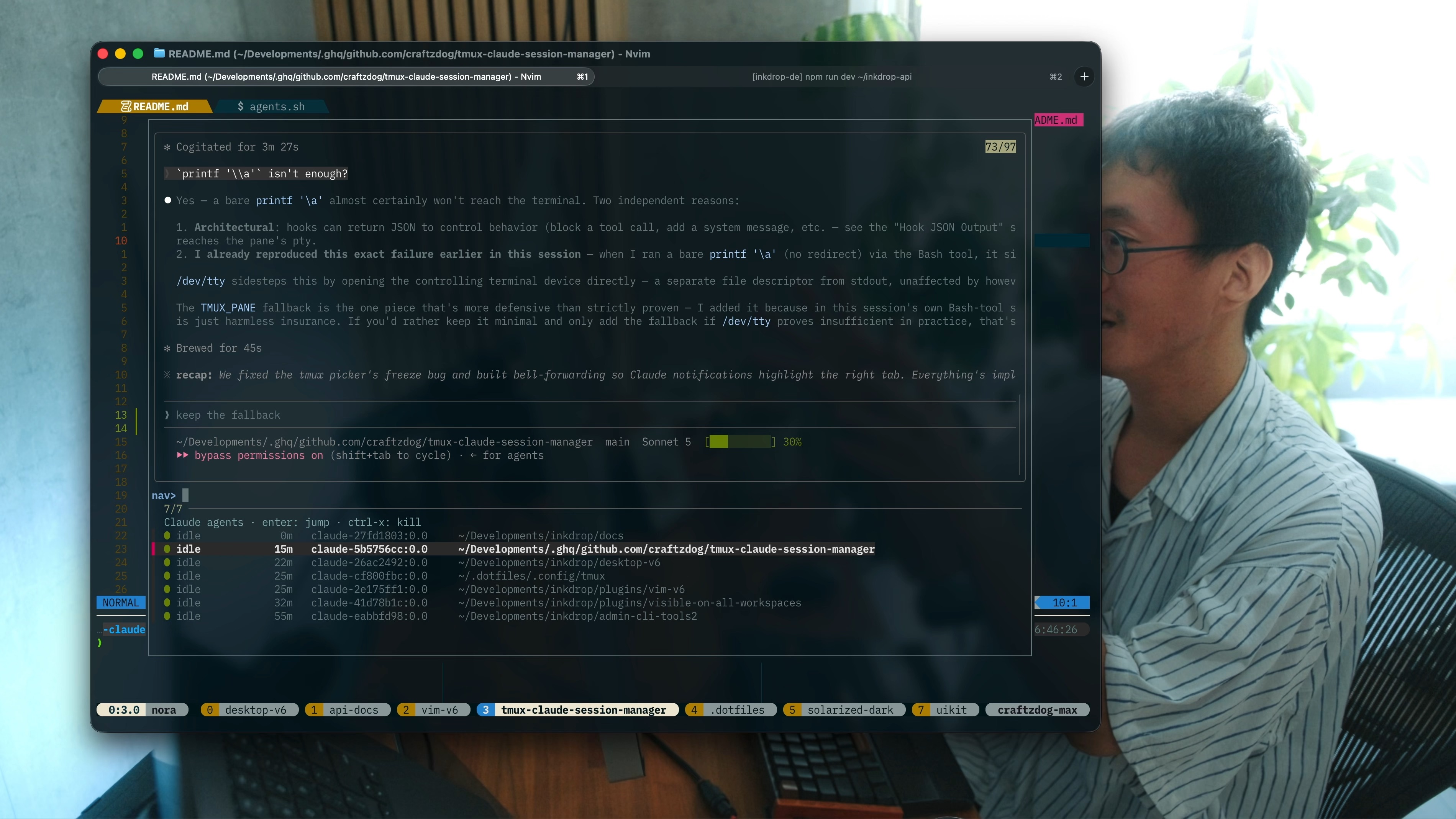
What the plugin does
Essentially, it's a task manager for Claude Code inside tmux. The tool ties together the fzf interface, tmux's built-in popup mechanism, and Claude Code's own internal API.
You press a key combination and see a floating window with a list of all running sessions. Each process shows its status right away:
- working (the agent is busy generating or executing commands);
- waiting (user input or confirmation is required);
- idle (the session is idle);
- time since the agent's last activity.
Agents that need your attention are automatically moved to the top of the list. A live preview of the screen via capture-pane is displayed alongside. You can immediately see which question stumped the assistant, without even switching to the session itself.
Pressing Enter drops you right into the context of the desired window and opens the session in a popup frame. Finished the dialogue or the agent completed its work — press the key combination to remove the process, and the session closes cleanly.
Interesting details under the hood
There are no custom daemons or heavy bash hooks parsing ps output here. The author took a more elegant route.
Claude Code versions 2.1.139 and above can expose information about its agents via the built-in claude agents --json command. Each running copy reports its current status to a local supervisor. The plugin simply reads this JSON via jq.
The main technical challenge was matching processes to tmux panes. On macOS, for example, a pane often reports the parent shell's PID rather than the child program's. Inside the plugin, the agents.sh script links identifiers along a chain: pid -> tty -> tmux pane.
Thanks to this binding, the plugin tracks processes rather than sessions. If you launched three different agents in one project or spun up Claude in a regular adjacent pane without the plugin, the tool will still find each process and display it as a separate line. The entire poll takes just three system calls, so the interface works without delays.
Another nice touch: if you open the selection menu (prefix + u) while already inside a Claude popup, the plugin first detaches the current popup, then expands the selection window to the full size of the outer terminal. No nested matryoshka dolls of shrinking frames.
Installation and basic setup
You'll need tmux version 3.2 or higher with popup support, fzf installed, the jq utility, and a recent Claude Code release.
If you use the TPM plugin manager, add this line to your ~/.tmux.conf configuration file:
set -g @plugin 'craftzdog/tmux-claude-session-manager'
After that, press prefix + I to load it.
By default, the plugin uses two key combinations:
prefix+ylaunches a new Claude session in the current directory inside a popup window (or connects to an existing one);prefix+uopens the fzf selector with all active agents.
Inside the list window, standard arrows and text filtering work. Enter switches to the selected session, and Ctrl-x forcefully terminates the process.
Parameters are easy to override. For example, you can set launch flags for Claude itself or change the window dimensions:
set -g @claude_popup_width     '85%'
set -g @claude_popup_height    '85%'
set -g @claude_args           '--dangerously-skip-permissions'
For fans of modal control, the README has a great example of integrating with vim-style layout. You can configure fzf so the list opens in navigation mode via j/k, and switching to search mode happens with the i or a keys:
set -g @claude_fzf_options "\
  --prompt 'nav> ' \
  --bind 'j:down' \
  --bind 'k:up' \
  --bind 'q:abort' \
  --bind 'x:execute-silent(kill {3})+reload(sleep 0.3; \$CLAUDE_PICKER --list)' \
  --bind 'i:unbind(j,k,q,i,a,x)+change-prompt(filter> )' \
  --bind 'a:unbind(j,k,q,i,a,x)+change-prompt(filter> )' \
  --bind 'esc:rebind(j,k,q,i,a,x)+change-prompt(nav> )'"
Is it worth installing
If you run Claude Code once a week for a couple of lines of code, you can easily get by without the plugin. A regular terminal tab is perfectly sufficient.
The tool is useful for those who actively use the agent approach in the terminal and parallelize tasks across different branches or subprojects. The plugin eliminates the tedium of finding the right tab and consolidates background task monitoring into one clear screen. Setup takes a couple of minutes, and the script source code is compact and transparent, without any unnecessary magic.
Related projects