How to cleanly display keyboard and gamepad inputs on your OBS Studio stream
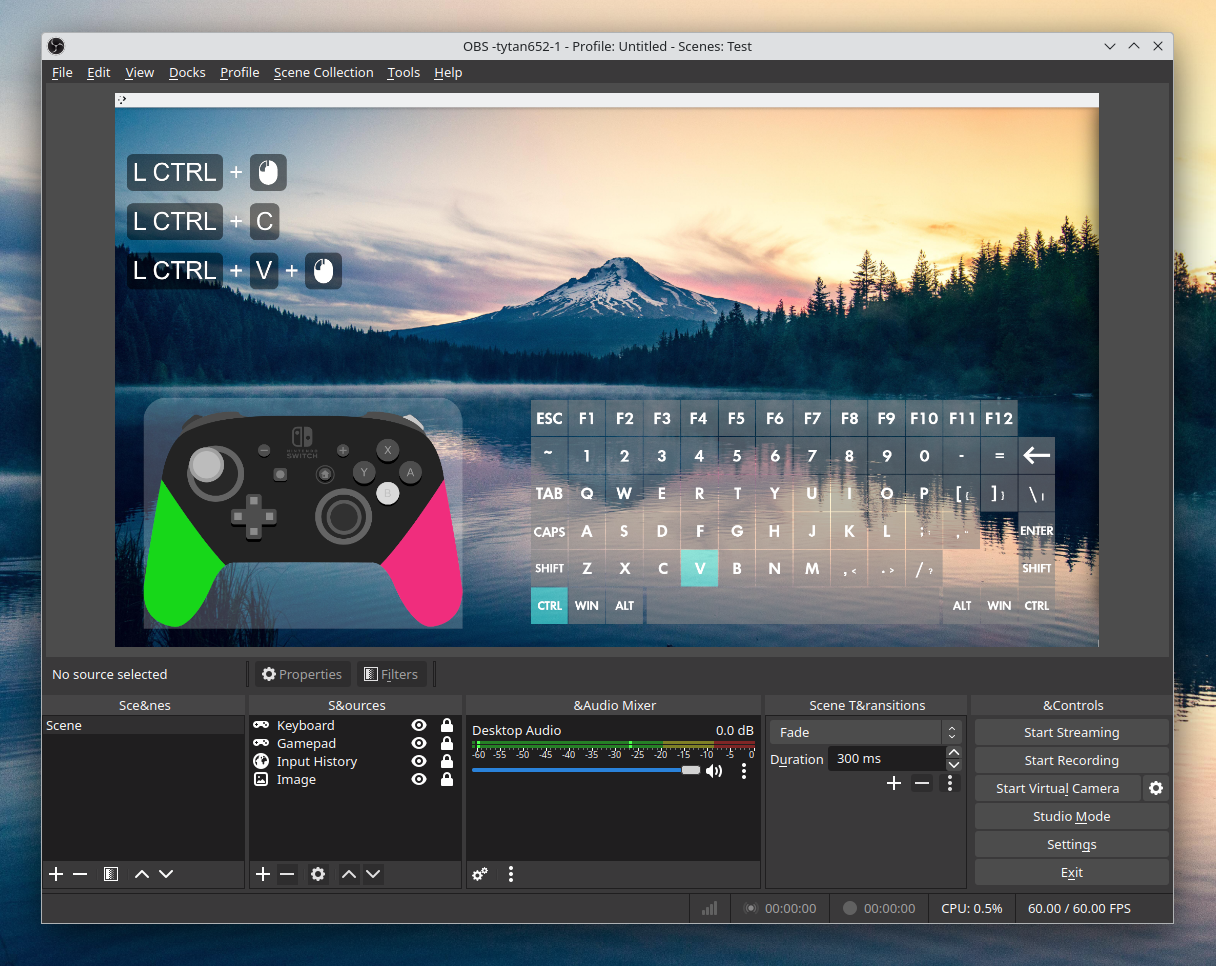
When I was recording my first screencasts breaking down hotkeys in my code editor, I kept catching myself thinking: viewers have no idea what I'm actually pressing. I had to either call out every combination like Ctrl+Shift+P out loud, or manually draw on hint overlays during editing. Not ideal, especially when the video runs for half an hour.
Gamers and speedrunners face this even more often. Showing timing for gamepad presses or bunny-hop mechanics in a shooter without a visual overlay is practically impossible.
Usually these tasks get solved with workarounds: launching a third-party utility in a separate window and capturing it through OBS using Window Capture with a color key. This eats up extra CPU resources and looks messy. The input-overlay plugin by developer univrsal solves this differently. It integrates directly into OBS Studio as a native source.
What this plugin can do
The project is written in C++ and runs on 64-bit versions of Windows and Linux. Its task is straightforward: intercept input from devices and draw it over the scene in real time with minimal latency.
Supported devices include:
- Standard keyboards (with support for any layouts and modifiers)
- Mice (tracking buttons, scroll wheel, and cursor movement)
- Gamepads and controllers (Xbox, PlayStation, universal DirectInput/XInput)
Instead of a primitive text log, the plugin uses custom textures and sprites. You take an image of a gamepad or keyboard, slice it into states (button released / button pressed) and bind the graphics to system events.
What's inside: architecture and dependencies
The project codebase contains several interesting solutions. To avoid reinventing the wheel for each device type, the author bundled proven low-level libraries.
For global keyboard and mouse interception, it uses libuiohook. This library works at the OS system hooks level, which makes it possible to listen to input even when the OBS window itself is in the background or a game is running in fullscreen mode.
Gamepads are handled by SDL2. This guarantees excellent compatibility with controllers from different generations without messing with raw device descriptors.
The mongoose integration deserves special attention — a lightweight embedded web server. Why would a key capture plugin need one? If you're streaming from two computers (one for gaming, the other as a streaming encoder), you can send input events over the local network from the gaming PC directly to the OBS instance on the streaming machine. A very clever feature that eliminates cable clutter.
How to build your own overlay
The plugin configuration consists of two files: a PNG graphics texture and a JSON layout file.
Previously the project used the .ini format, but eventually switched to JSON. So you don't have to calculate pixel coordinates for buttons in a notepad, the author released a visual web editor called Config Creation Tool (CCT).
You upload your sprite sheet in the browser, place bounding boxes over the buttons, link them to key codes, and export the finished config:
After that, you just add a new "Input Overlay" source in OBS Studio, point it to the JSON and PNG, and the widget is ready to go. The plugin renders textures through OBS's graphics pipeline, so the rendering overhead is practically zero.
Where this comes in handy for developers
It might seem like a strictly streamer tool. But for technical content it's just as useful:
- Recording educational screencasts. Demonstrating hotkeys in Vim, Emacs, Blender, or VS Code helps viewers replicate actions on the fly without getting distracted by pauses.
- Testing gamepads and input lag. If you're developing an indie game or emulator, the overlay lets you visually cross-check controller presses with character reactions on screen.
- Presentations and team demos. During complex UI scenarios or terminal utility walkthroughs, viewers immediately see modifiers and function keys.
Nuances and limitations
The documentation in the repository is concise, so beginners will need to spend half an hour understanding the sprite structure. Creating a polished skin from scratch requires basic graphic editor skills.
Keep privacy in mind too. Since hooks intercept input globally, during a stream or video recording the overlay will faithfully display any keystrokes if you start typing passwords or private data. For these cases, it's better to set up a hotkey to hide the source in OBS in advance.
The plugin is also focused on Windows and Linux x64 — macOS builds are not officially supported.
Is it worth trying
If you need a clean, performant way to display device input in OBS without browser workarounds and frame drops, input-overlay is one of the most reliable options.
The project has been active since 2017, gathered over 4,000 stars, and tackles one specific task without bloating the codebase. Pre-built binaries are available in the Releases tab on GitHub, and ready-made presets for gamepads and keyboards can be found on the OBS Project forums.
Related projects