Crop and Edit — How slides-grab Simplifies Presentation Layout with AI
Creating presentations is a traditional headache for most engineers. When you need to quickly put together a pitch, a meetup talk, or a quarterly report, you're left with two options. The first is to wrestle with heavyweight editors like PowerPoint or Figma. The second is to ask an LLM to generate HTML code with slides.
The second path looks tempting, but quickly hits a dead end with routine tasks. If you need to change the font in a heading or shift an image a couple of pixels to the left, you either have to hunt for the right <div> manually, or write another long prompt. In response, the neural network often rewrites the entire slide and breaks the layout in adjacent blocks.
The slides-grab project offers a different solution. It's a local tool that combines a visual editor in the browser, a layout validator, and a wrapper for connecting AI agents.
What's the project about
The slides-grab authors started from a simple fact: language models are excellent at laying out pure HTML and CSS. The main problem isn't code generation, but conveying context. How do you explain to the model which element on the slide you don't like?
The tool solves this problem through area selection. You start a local editor, see the slide right in the browser, and select the needed block with your mouse. The editor forms precise context for the AI agent — for example, for Claude Code or OpenAI Codex. You write: "make this block darker and add padding," and the agent changes only the corresponding HTML snippet.
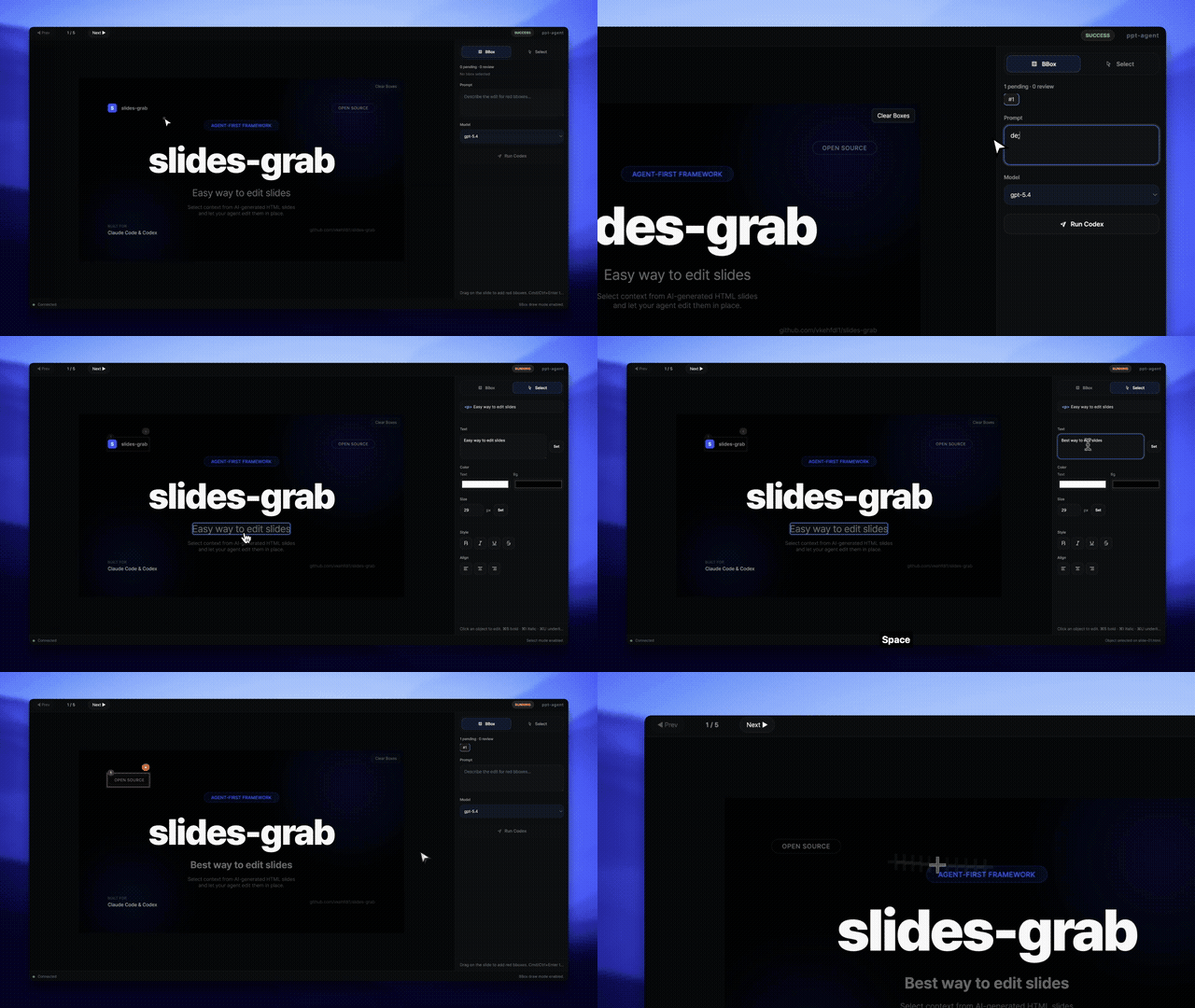
Minor edits like typos or text size can be made directly in the browser manually. You won't need to move tags around in the IDE.
How working with slides is organized
All slides are stored in the working directory as separate files slide-01.html, slide-02.html, and so on. Media files sit nearby in the assets/ folder. You're not tied to vendor formats or closed cloud services. If the tool stops being maintained tomorrow, you'll still have regular web code.
Here's what the main workflow with the project looks like:
- Structure and style generation. The agent creates a presentation plan and applies one of the ready-made themes. The tool ships with a catalog of 95 design systems. You can select the right one through the local gallery viewer
slides-grab preview-styles. - Visual editing. You open the interface via
slides-grab edit, fix typos manually, or ask the agent to change a specific selected fragment. - Quality check. The
slides-grab validatecommand launches Chromium via Playwright in the background. The linter checks for broken image paths, external links, or erroneous CSS properties. - Export. The result can be compiled to PDF, images, or a PowerPoint presentation.
Local resources and media handling
Usually, creating presentations hits a bottleneck when searching for suitable illustrations and diagrams. In slides-grab, these scenarios are handled right from the console.
For image generation, the utility uses the codex-imagen module by default. It leverages local authorization from Codex CLI, so you don't even need to specify a separate OpenAI API key. Just run the command in the terminal:
slides-grab image --slides-dir decks/my-deck --prompt "Минималистичный векторный график роста метрик"
The generated file is saved directly to the assets/ folder, and the console returns a relative path that's easy to insert into HTML. If you need third-party providers, you can switch to the standard OpenAI API or Google Gemini.
The situation with video and diagrams is similar:
- The
slides-grab fetch-videocommand downloads video from YouTube usingyt-dlpand saves it locally. - The
slides-grab tldrawcommand converts diagrams from.tldrformat to a clean SVG image, fitted to the slide size.
Under the hood and export nuances
The tool is written in JavaScript and runs on Node.js version 20 and above. The server side spins up a local server for the editor and communicates with the browser via Playwright.
Importing other people's presentations is implemented interestingly. If you have a ready corporate PPTX file or brand guidelines, the slides-grab import-template command breaks it down into colors, fonts, and grids, forming a JSON config. After that, the AI agent uses this data as a reference for new slides.
As for export, the main and most reliable option is PDF or PNG. The slides-grab pdf command rasterizes frames to high-resolution 4K by default, preserving the original layout down to the pixel. For searchable text PDFs, there's the --mode print flag.
However, you should approach exports to PPTX and Figma with caution. In the documentation, the developers honestly mark the PowerPoint conversion as an experimental feature. When selecting the text engine (--engine text), the tool attempts to translate the DOM tree into native PowerPoint elements, but on complex CSS grids, the layout may break.
How to try it out
For installation, just install the package via npm and add the Chromium browser for Playwright:
npm install slides-grab
npx playwright install chromium
npx slides-grab install-skills --target all --scope user
The install-skills command registers the utility's skills with your local Claude Code or Codex agents. To develop your own slide deck, you don't need to clone the repository.
Who will find this project useful
slides-grab is great for developers, founders, and technical leads who are tired of spending hours aligning blocks in graphic editors.
The main advantages of the tool are autonomy and pinpoint context when working with LLMs. You keep the entire presentation in Git as readable HTML, don't depend on third-party SaaS platforms, and can easily make edits by voice or mouse.
The downsides are imperfect PPTX export and the built-in image generation's dependence on non-public Codex endpoints, which may change over time. Nevertheless, for assembling neat slides with subsequent export to PDF, the project looks like an extremely practical solution.
Related projects