How to Stop Juggling Accounts in Cursor, Windsurf, and Copilot
The other day I caught myself in an absurd situation: three different editor windows open on my work laptop, five browser tabs with AI service profiles, and in the terminal I'm frantically trying to remember which Cursor account still has fast queries left today. Sound familiar?
These days, almost every developer accumulates a whole zoo of assistants: a work GitHub Copilot account, a personal Windsurf, a free Cursor tier for quick edits in the evenings, plus a couple of exotic IDEs like Trae or Zed. Limits evaporate quickly, tokens burn out in the middle of complex tasks, and manually re-logging through the browser every few hours becomes exhausting.
The solution to this routine came from the Cockpit Tools repository. It's a desktop application built with Rust and Tauri that transforms the chaos of a dozen AI accounts into a single neat control panel.
What's under the hood and why you need it
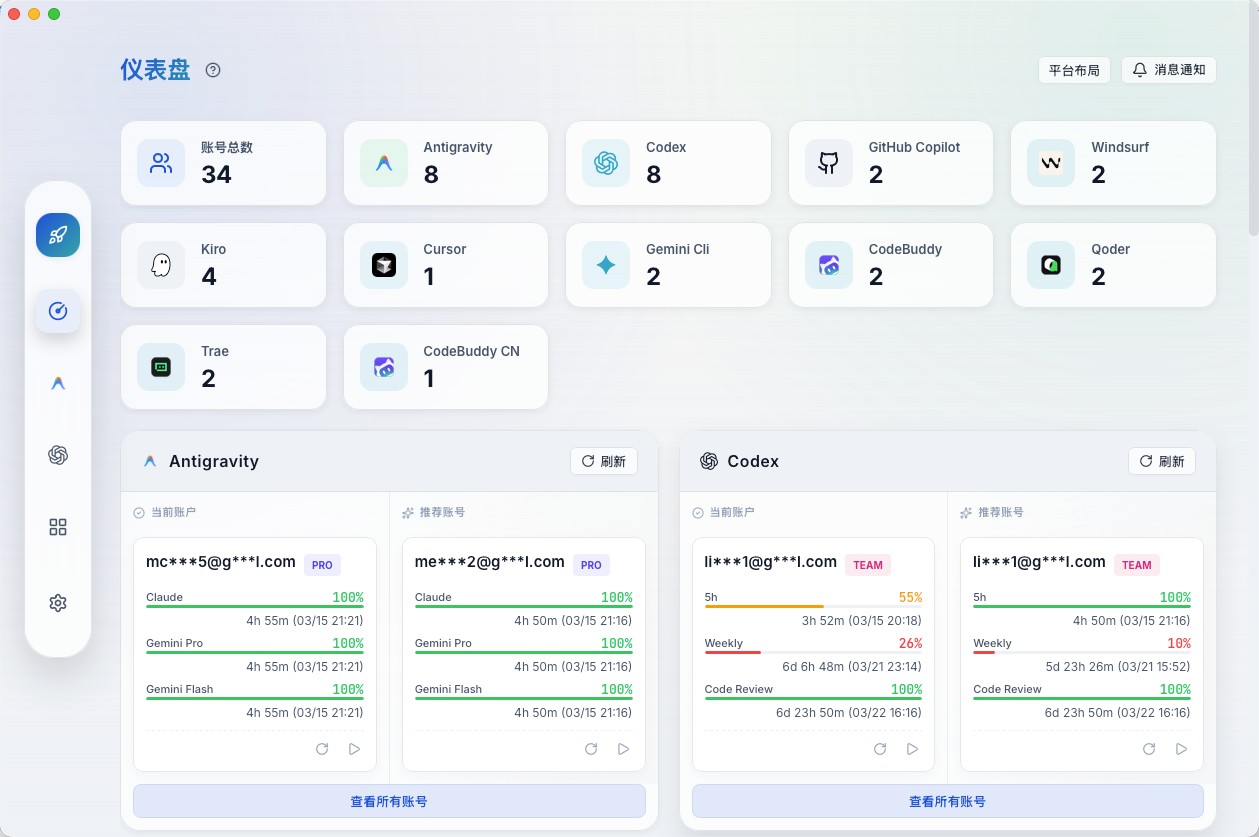
The main goal of the project is simple: give developers a way to keep all their AI profiles in one window, track remaining quotas, and switch between them in one click without endless OAuth redirects.
The utility supports an impressive list of tools. The list includes GitHub Copilot, Cursor, Windsurf, Codex, Kiro, Zed, Grok CLI, Trae, Qoder, and CodeBuddy. The app works on macOS, Windows, and Linux right out of the box.
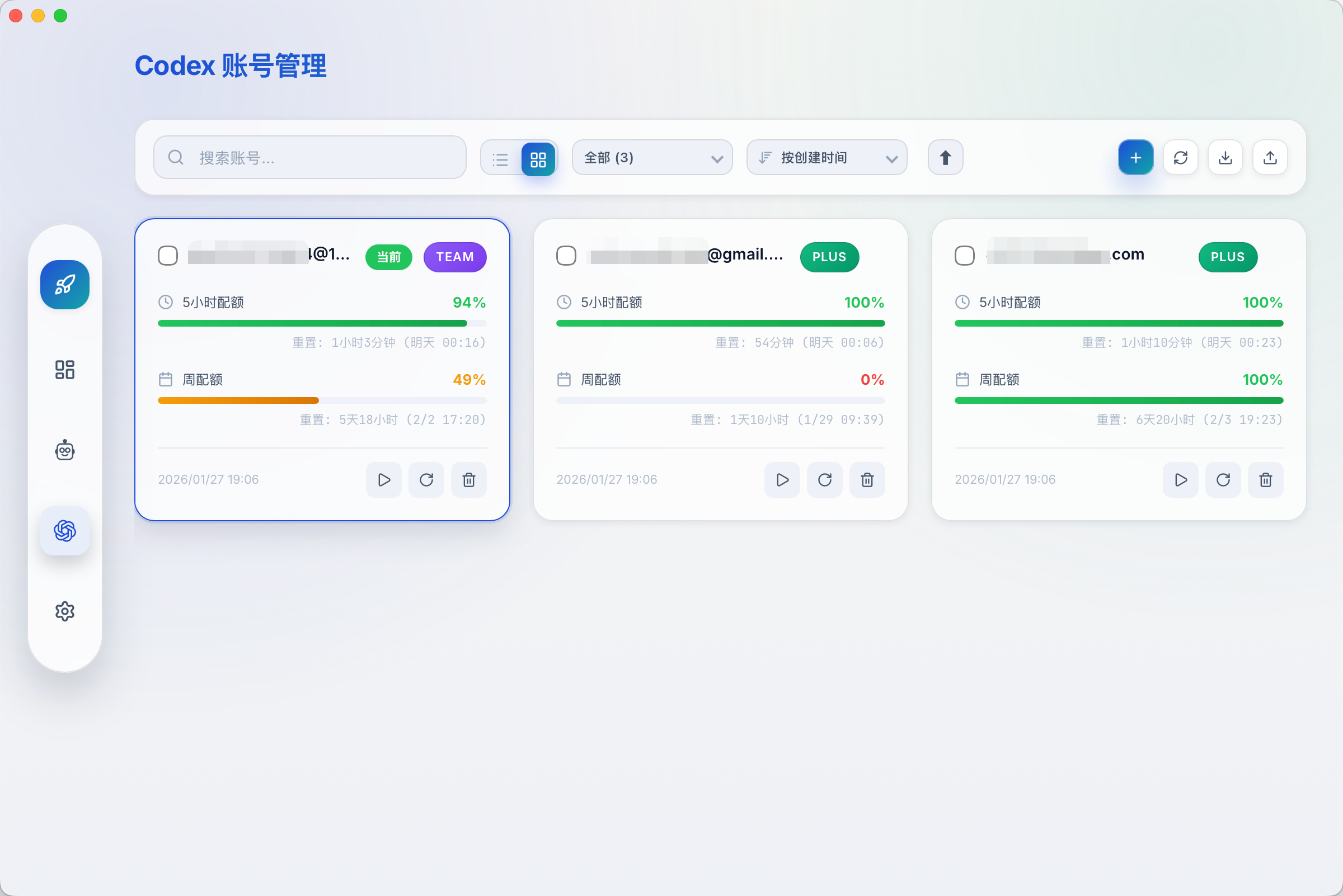
The main screen shows the status of all connected services. You immediately see how many requests are left on your plan, when limits will reset, and what type of subscription is active. If one profile's limit is exhausted, you simply press a button and continue working under a different account.
Running multiple copies of the editor simultaneously
A common problem when working with AI editors is that the operating system stores authorization globally for the current user. You can't just launch two instances of Cursor or Windsurf with different logins.
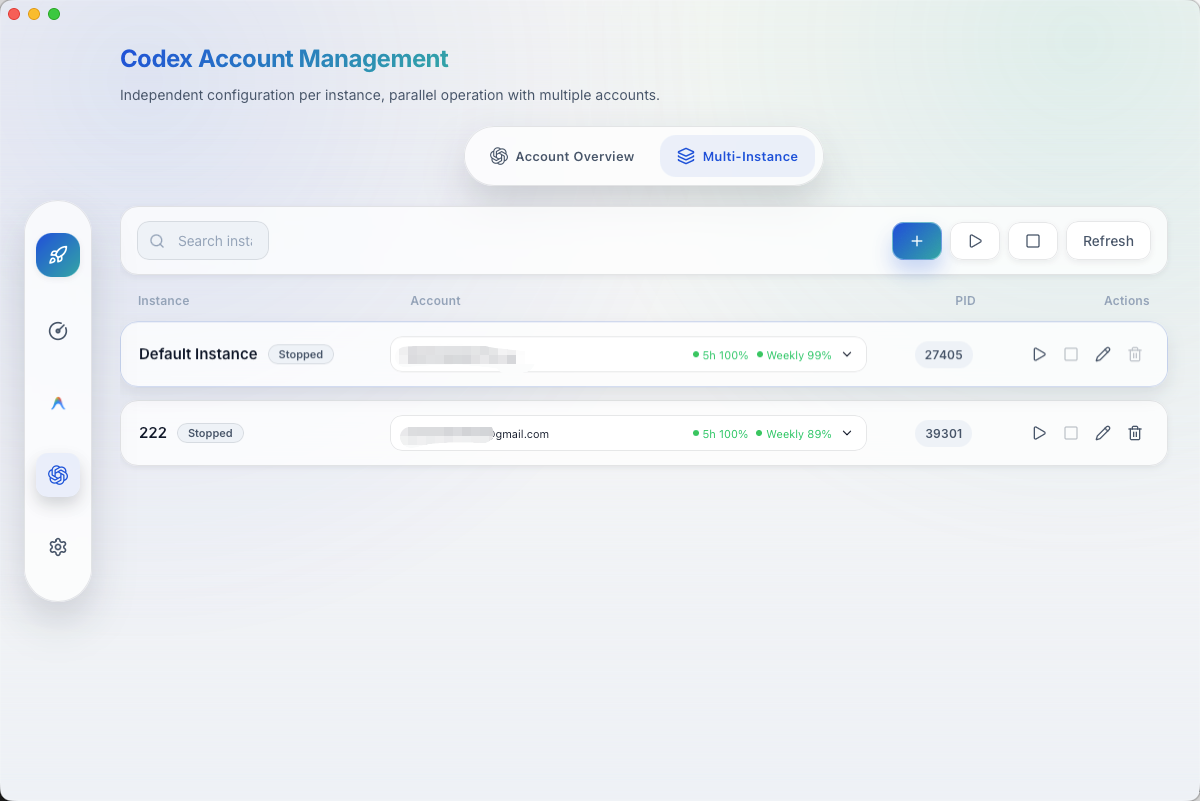
Cockpit Tools solves this with isolated profiles. The application creates independent directories with user data for each instance.
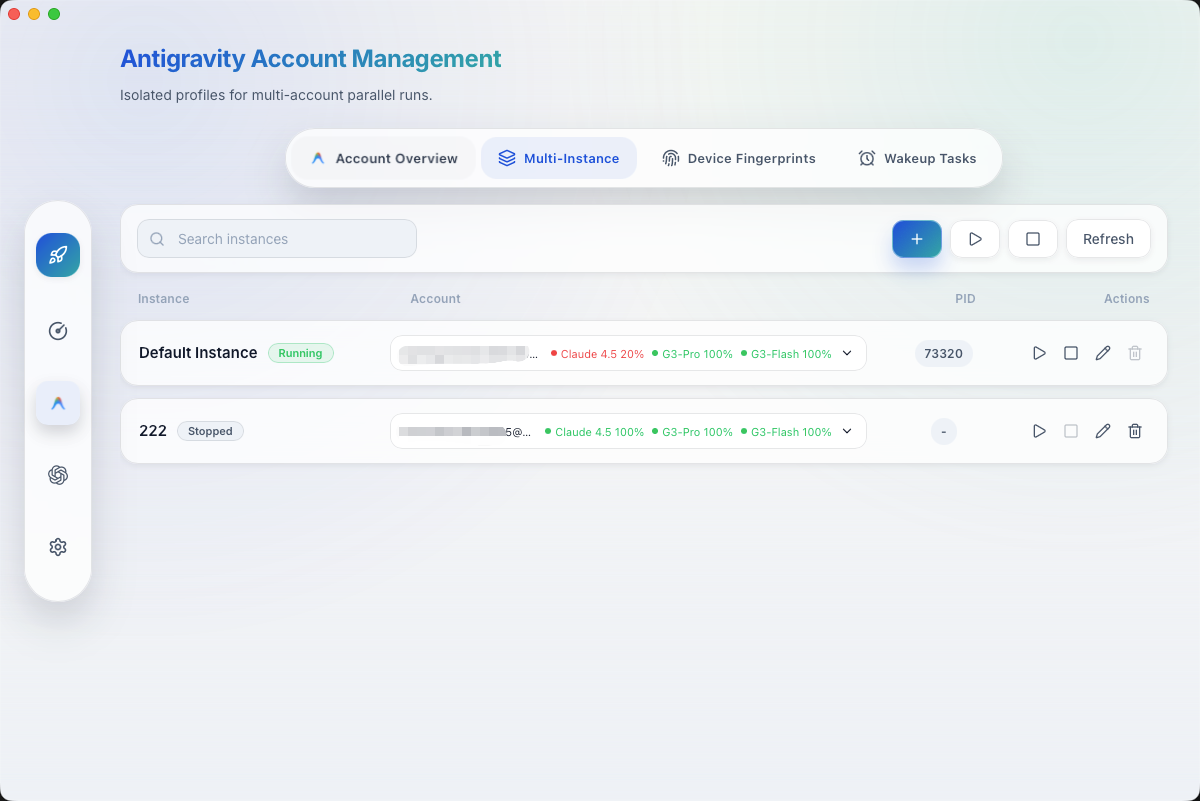
Thanks to this, you can:
- Keep two copies of the same editor open with different work and personal profiles
- Launch background AI agents in an isolated context
- Set different launch parameters and working folders for each project
How limit monitoring works
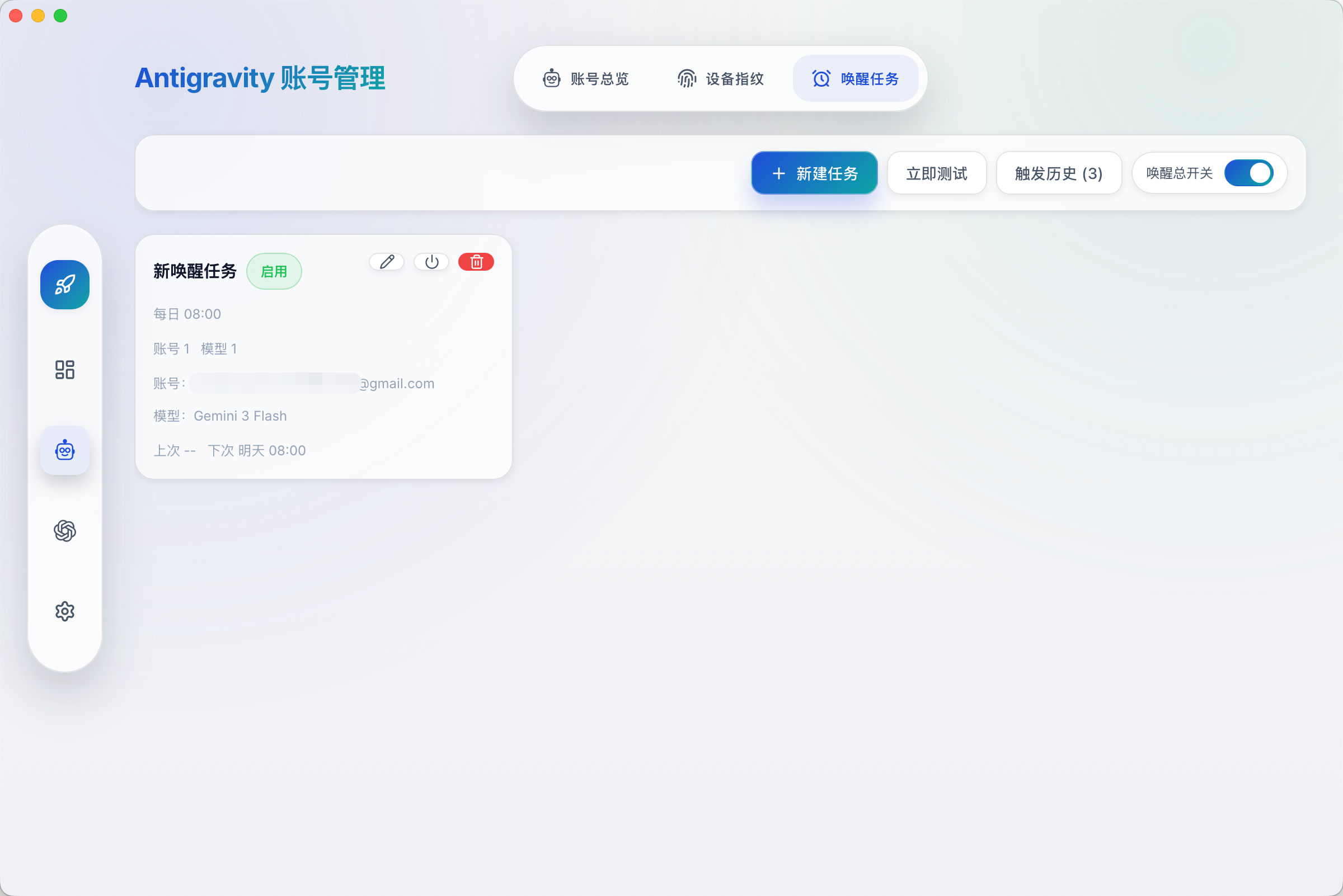
Many services reset quotas on a schedule, but sometimes the reset timer only starts ticking after the first request sent that day. The Cockpit Tools authors added a background wakeup mechanism (Wakeup Tasks). The utility can send a minimal model ping on a timer to activate the quota reset window in advance, while you sleep.
For Grok CLI and Codex, a separate logic is implemented. The utility can parse local configuration files, save tokens according to official specifications, and automatically refresh the access token via refresh token. In the case of Codex, a local CLIProxyAPI sidecar runs under the hood, which translates requests and collects accurate token usage statistics.
Security and secret storage
When it comes to aggregators of keys and tokens, the first logical question is: where does my data go?
The developers made the utility completely local:
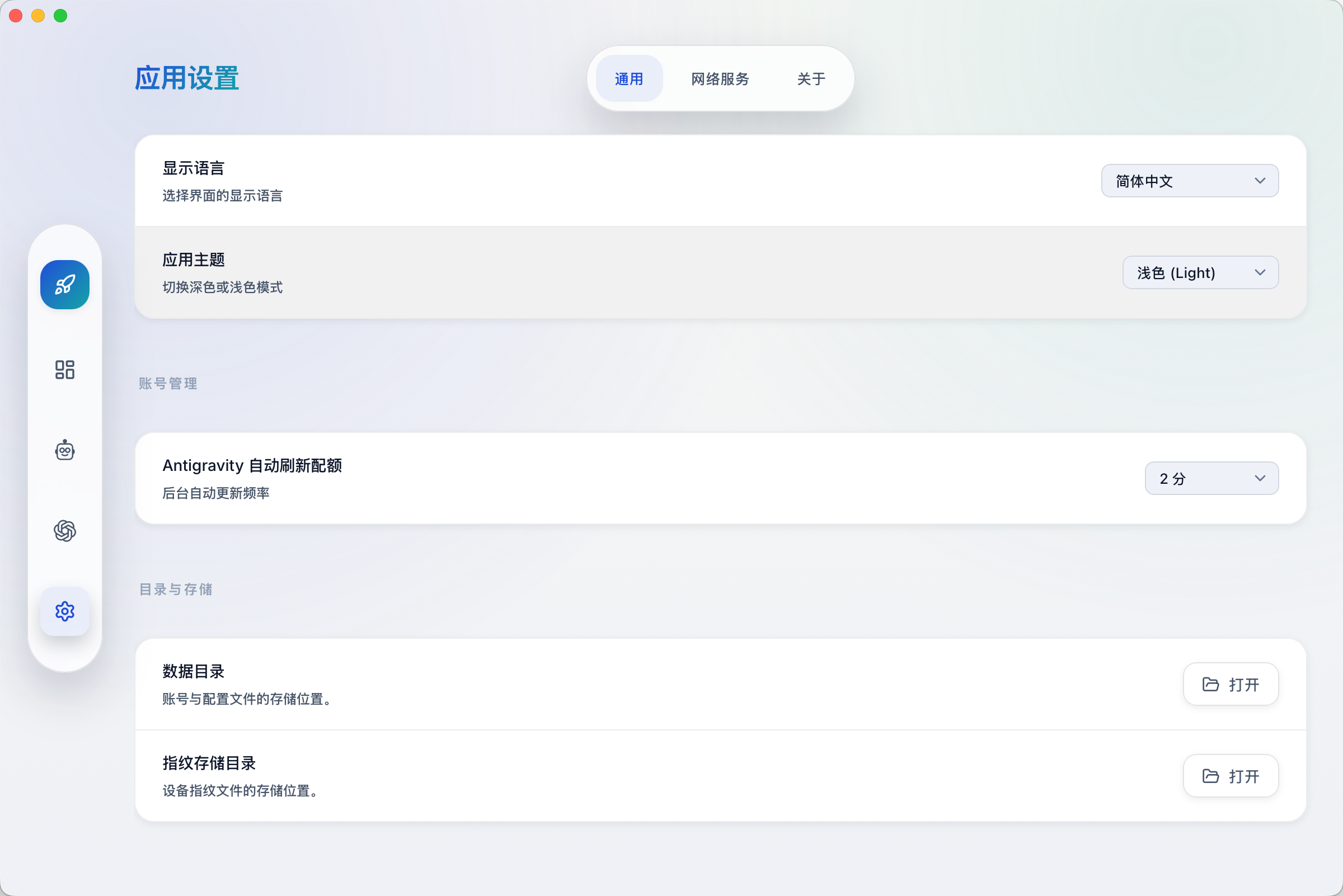
- There are no third-party cloud servers for the project. Authorization data is stored exclusively on your machine (in the
~/.antigravity_cockpit,~/.codex,~/.grokdirectories and the system application data folder). - Network requests go only to the official APIs of the selected services for quota checks and OAuth authorization.
- The built-in WebSocket server for plugin communication listens exclusively on the local address
127.0.0.1on port 19528. If you don't need plugins, this service can be disabled with a single checkbox in settings.
There's a macOS-specific nuance. When an agent is launched through the manager that executes console commands, the system may prompt for file access on behalf of Cockpit Tools. This is normal child process behavior on macOS, but you still shouldn't run unverified scripts.
Installation and quick start
The easiest way is to grab a ready-made binary from the repository's releases page. Builds are available for macOS (.dmg), Windows (.msi, .exe), and Linux (.AppImage, .deb, .rpm).
macOS users can install the package via Homebrew:
brew tap jlcodes99/cockpit-tools https://github.com/jlcodes99/cockpit-tools
brew install --cask cockpit-tools
If Gatekeeper on macOS complains about an unsigned app, the quarantine is removed with a standard command in the terminal:
sudo xattr -rd com.apple.quarantine "/Applications/Cockpit Tools.app"
To build from source, you'll need Rust, Node.js 18+, and the npm package manager installed:
git clone https://github.com/jlcodes99/cockpit-tools.git
cd cockpit-tools
npm install
npm run tauri dev
Wrapping up
Cockpit Tools addresses a very specific pain point for those who actively use neural networks in development and juggle subscriptions. The interface is fast, the app barely uses any memory thanks to the Rust and Tauri combo, and local data storage eliminates paranoia about token security.
If you only have one account in VS Code with corporate Copilot, the utility probably won't be useful to you. But if you test different environments in parallel, keep backup profiles for different tasks, and are tired of manually checking remaining limits, the project is definitely worth installing and trying out.
Related projects