How to unify all cloud storages in a single web desktop

I have four storage tabs open on my work computer. One has the work Google Drive, the second has personal Dropbox, the third has the AWS S3 console with backups, and the fourth has MinIO on my home server. Transferring a file from the corporate cloud to an S3 bucket usually turns into a circus: download a gigabyte to your laptop, open another tab, upload it back, and don't forget to clean up the Downloads folder.
Recently I came across a fresh open source project called Drivebase. The developers solved this routine in a rather original way. They made a self-hosted web application that looks like a full-fledged windowed operating system right in the browser, can connect to different providers, and move files between them.
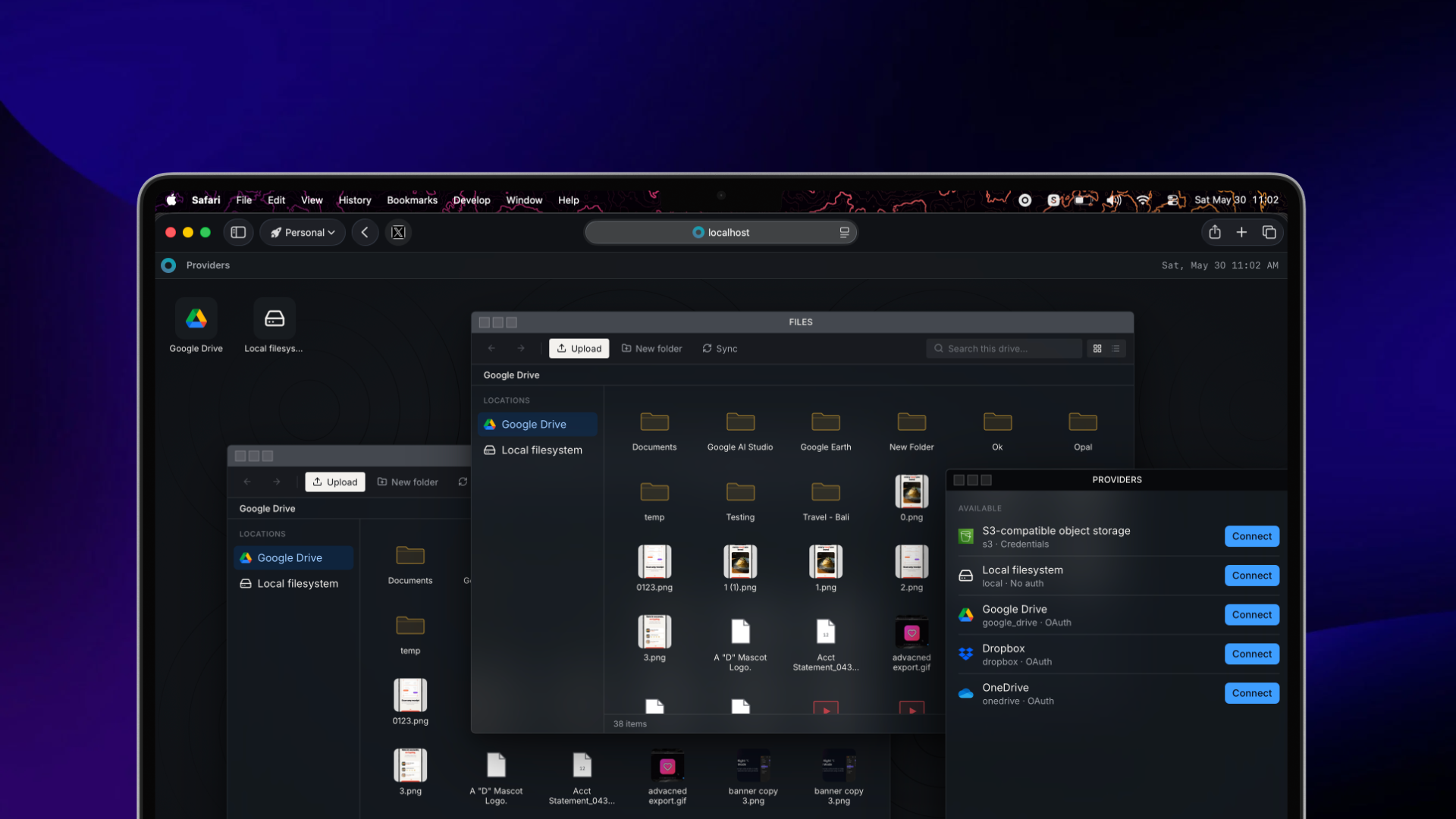
Windowed interface instead of endless tabs
The main feature that catches the eye is the UI. The creators didn't make a typical single-page dashboard. Instead, they built a desktop with a taskbar and windows.
You can open two file windows side by side: on the left your Google Drive, on the right an S3 bucket on Cloudflare R2 or Backblaze. Files are dragged with the mouse or copied through batch operations. Windows can be minimized, resized, and overlap each other. It feels like you're sitting in a native file manager like Finder or Total Commander, only inside a browser tab.
Currently, the project supports several data sources:
- Google Drive
- AWS S3 and any S3-compatible storages (MinIO, Wasabi, Cloudflare R2, Backblaze B2)
- Server's local file system
- Dropbox and OneDrive
The authors plan to add Box, Azure Blob Storage, and regular SFTP.
What the engine under the hood can do
The interface looks nice, but the engineering under the hood is far more interesting. File transfers between different APIs are usually full of pitfalls.
Direct upload to S3 without server load
If you're uploading a 10 GB video file to an S3 bucket, routing such traffic through the Drivebase server makes no sense. The backend generates a presigned multipart URL, and the browser sends parts directly to AWS or MinIO storage. The server doesn't choke on memory and network bandwidth.
Resumable uploads
Large file uploads are split into chunks. If the browser accidentally closed or the Wi-Fi flickered, the process will continue from where it left off.
Conflict analysis before copying
When bulk transferring folders, the system runs a preliminary check. If a file with the same name already exists in the target folder, Drivebase will show a warning and offer options: overwrite, skip, rename, or resolve conflicts manually.
Real-time without polling
You don't need to monitor background task status through constant AJAX requests. The architecture uses Server-Sent Events (SSE) combined with GraphQL. File transfer progress is displayed on the client instantly as events arrive from the queue.
A look at the tech stack
The technical stack here is modern and free of legacy code.
The backend runs on the Bun runtime. Instead of classic REST, the developers built a typed GraphQL API based on GraphQL Yoga and the graphql-sse package. The database is PostgreSQL with Drizzle ORM, background workers run through BullMQ and Redis, and Better Auth handles sessions.
The frontend is built on fresh React 19, Vite, TanStack Router, and Tailwind CSS 4.
The provider architecture is built around the IStorageProvider interface. If you have your own corporate storage or specific WebDAV, you can add support for it by implementing one interface with a basic set of read, write, and streaming methods.
How to deploy for yourself
The fastest way to try Drivebase is to run the official installation script, which prepares the configuration file and spins up Docker Compose:
curl -fsSL https://drivebase.io/install | bash
cd drivebase
docker compose up -d
After startup, the web interface will be available at http://localhost:4000.
If you want to run the project for development or local modifications using Bun:
git clone https://github.com/drivebase/drivebase.git
cd drivebase
bun install
Copy the example configuration:
cp packages/config/config.example.toml config.toml
In the config.toml file, you need to specify PostgreSQL and Redis connection parameters, as well as generate an encryption master key and authorization secret:
[server]
env = "prod"
port = 4000
host = "0.0.0.0"

[db]
url = "postgres://user:password@localhost:5432/drivebase"

[redis]
url = "redis://localhost:6379/0"

[crypto]
# Генерация ключа: openssl rand -base64 32
masterKeyBase64 = "ваш-ключ-32-байта"

[auth]
# Генерация секрета: openssl rand -hex 32
betterAuthSecret = "ваш-рандомный-секрет"
baseUrl = "http://localhost:4000"
trustedOrigins = ["http://localhost:3000"]
Apply migrations and start the dev server:
bun run db:migrate
bun run dev
The backend will start on port 4000, and the web client on port 3000.
Who is this made for
Drivebase will be useful in two main scenarios:
- Home server or homelab. When you have a NAS running, a couple of terabytes on external drives, and free cloud tiers, Drivebase gives you a single entry point without needing to install a dozen sync utilities.
- Small teams and freelancers. It's convenient to keep source code in S3, client materials on Google Drive, and transfer work results between them through the browser.
The project currently has around 400 stars on GitHub, the repository is quite fresh, so you may encounter rough edges in edge cases. However, the idea of unifying heterogeneous APIs under a single desktop interface on Bun and React 19 looks promising. The code is open under the MIT license, so nothing stops you from forking it and writing your own storage adapter.
Related projects