How to combine code, design, and text in one AI workspace — trying out Kun
A typical workflow with AI assistants looks chaotic. A developer copies a piece of code from the IDE into a browser window with ChatGPT, asks to fix the logic, pastes the result back, runs tests, sees an error, and rushes back to the web interface. If you add documentation writing or UI prototype sketching tasks to this, switching between tabs becomes endless.
The developers of the Kun project decided to combine code writing, text, design, and automation in a single local environment. The main feature of the tool is a shared runtime that can simultaneously connect a graphical interface and a terminal.
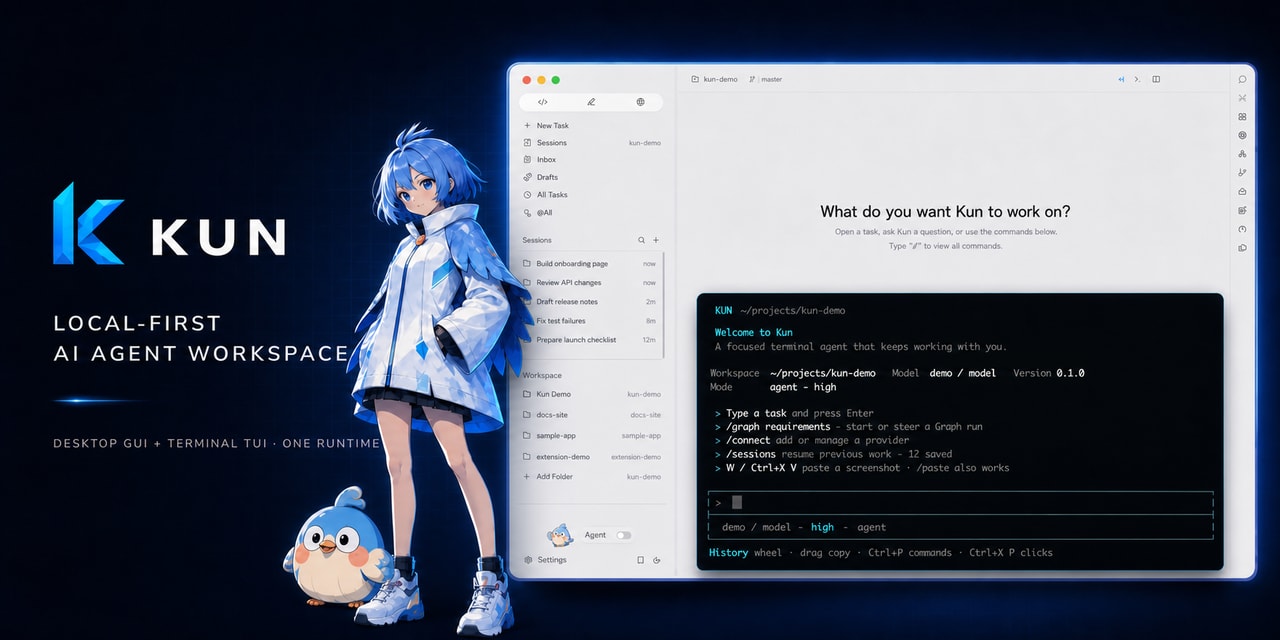
One Runtime for GUI Window and Console
Kun is built on a server process kun serve. It starts on the local machine and takes over session management, task histories, LLM connections, and command execution.
You can launch the desktop Electron app and simultaneously open a terminal in the project folder by entering the command:
kun
Both interfaces instantly pick up the same working context. Need to quickly send a short clarification without taking your hands off the keyboard — write in TUI. Want to view file diffs, edit a visual canvas, or analyze a PDF document with screenshots — switch to GUI. All changes, action plan, and tool call history remain synchronized.
Five Workspaces for Different Tasks
The authors didn't limit the project to the bounds of basic "AI coding." The workspace is divided into five specialized blocks.
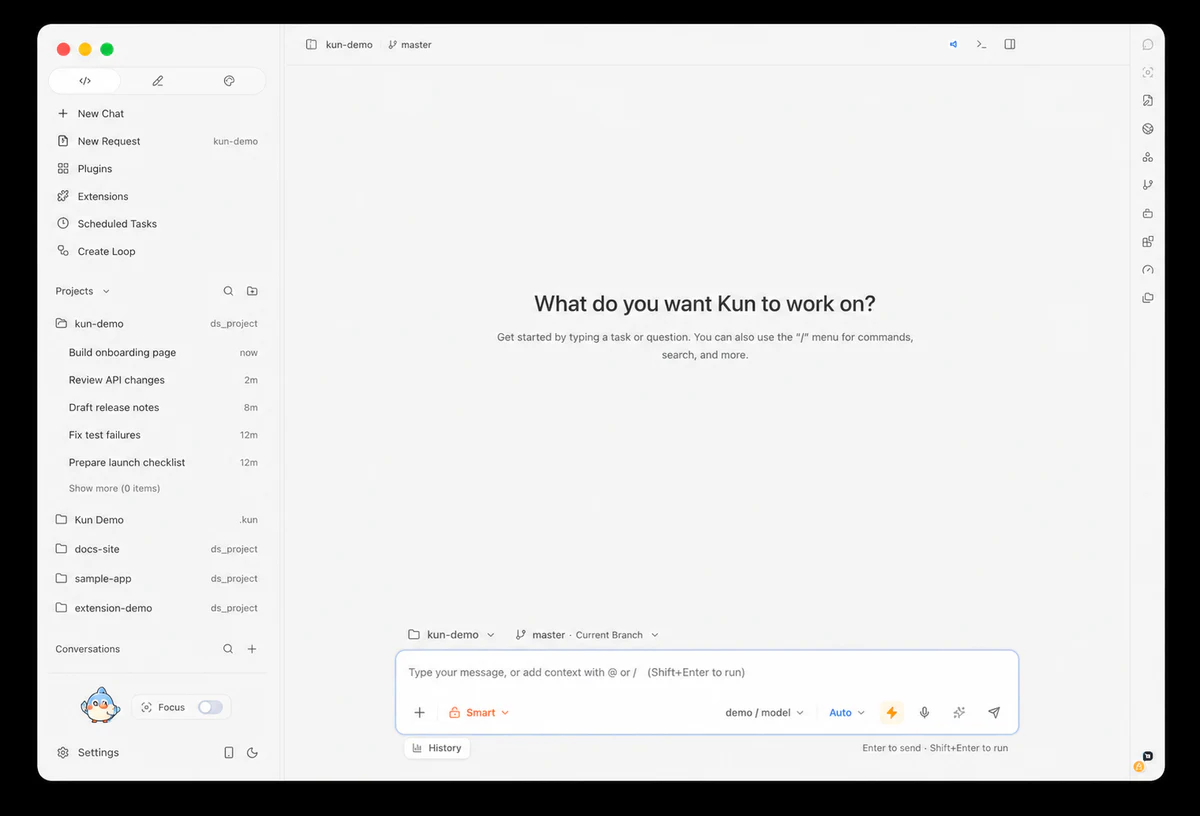
- Code. A full-featured mode for working with a repository. The agent can search through files, make edits, execute console commands, run tests, and output internal change diffs.
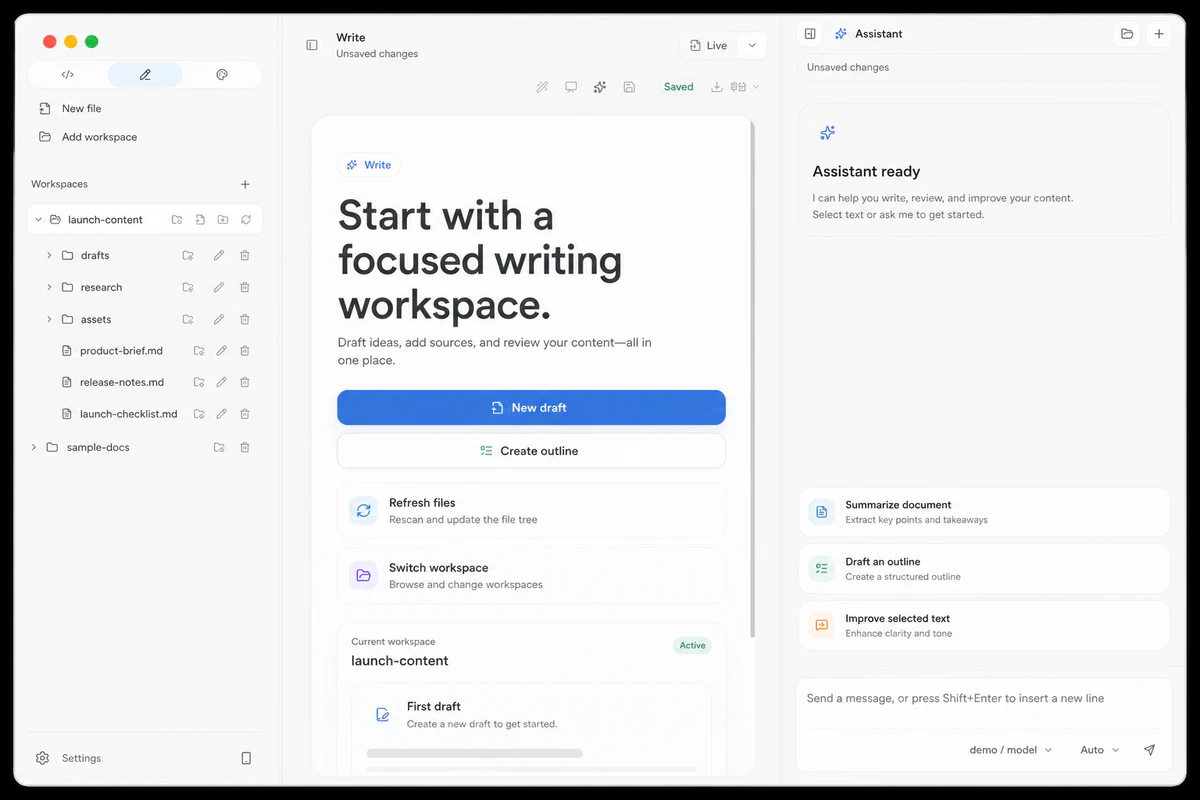
- Write. An environment for preparing documentation, articles, or reports. Supports inline text completion, editing, and can export results to Markdown, HTML, PDF, DOCX, and PPTX.
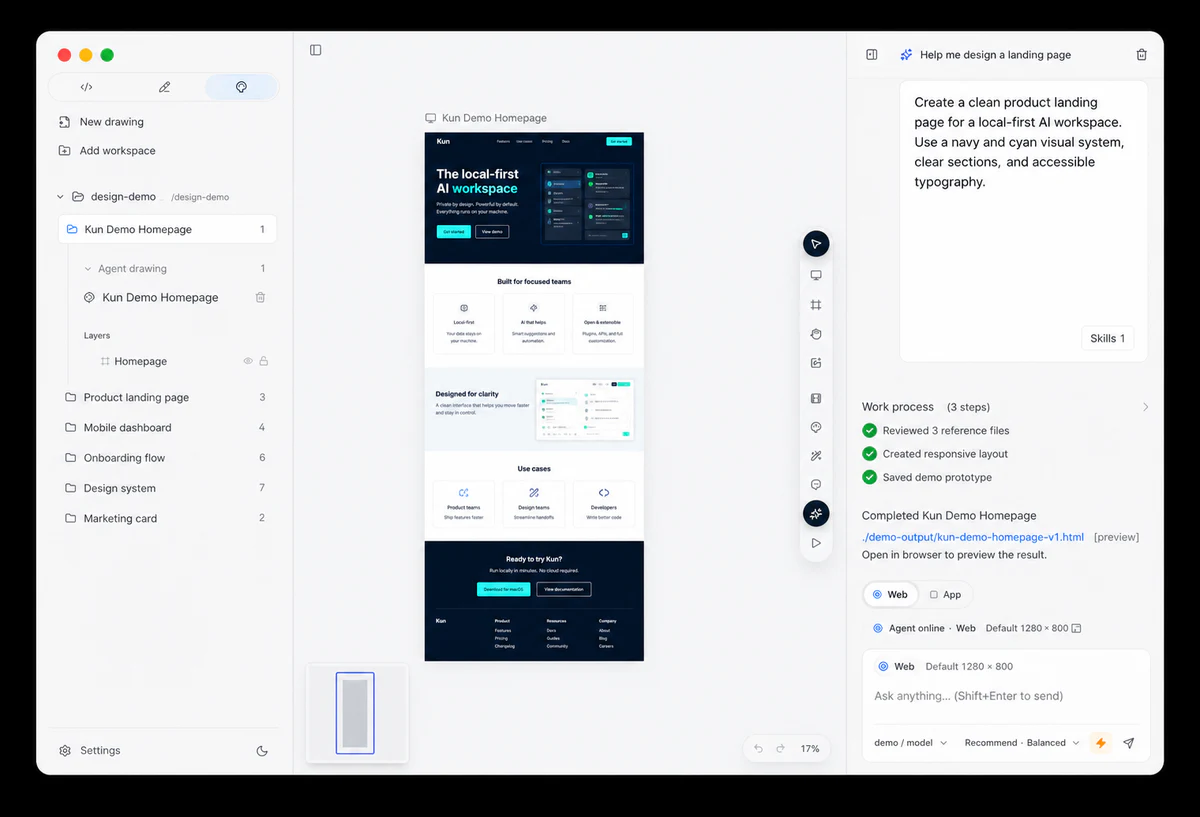
- Design. A mode for laying out interactive HTML/CSS prototypes and generating design system files (
DESIGN_SYSTEM.md). A sketched interface can be immediately passed to the coding block.
- Research. Working with multimodal context. You upload PDF files, charts, or screenshots, and the agent extracts facts, gathers arguments, and generates final notes.
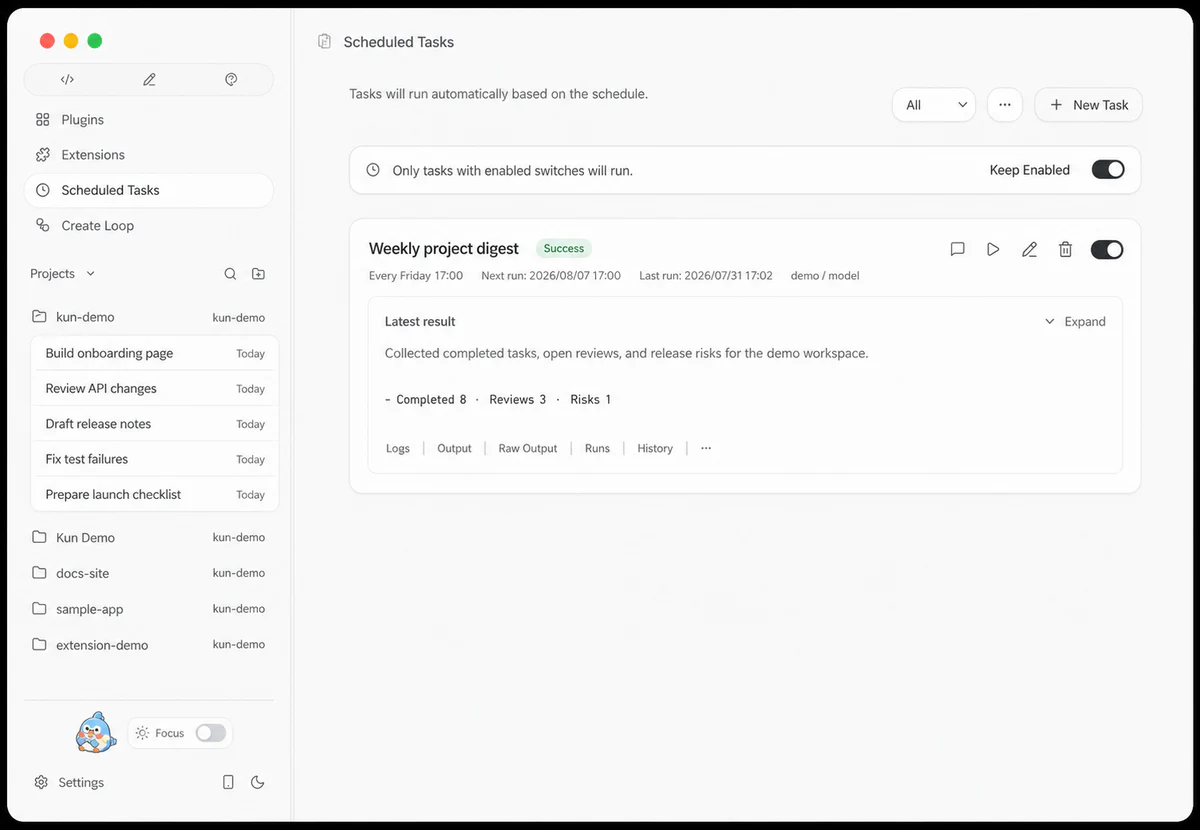
- Automate. A module for running background task execution. Here you configure schedules, repeat loops, hooks, and connect external tools via MCP (Model Context Protocol).
How Agent Graph Works for Complex Tasks
For short questions or targeted edits, Kun has a Direct mode — a quick dialog without unnecessary bureaucracy. But if a task spans dozens of files and requires sequential verification, the experimental Agent Graph mode kicks in.
In this mode, the main agent (Lead Agent) first builds a dependency graph. Then it breaks the task into small subtasks and delegates them to isolated child agents. Each child agent receives only the permissions, tools, and file access necessary for its stage.
The result of work is passed further along the chain only after the Lead Agent verifies the changes and confirms that tests have passed. If a failure occurs at any step, the graph doesn't pretend everything went smoothly. A task can be paused, manually corrected, or a separate node can be sent for re-execution.
Local Data and Freedom to Choose Models
Kun is designed with a local-first principle. The entire session database, logs, local settings, and project files are stored exclusively on your disk.
At the same time, the project doesn't force you to use a specific neural network. Through a unified settings menu, you can connect virtually any provider:
- Local models via Ollama
- Cloud APIs from OpenAI, Anthropic, Gemini, DeepSeek, Qwen, or Kimi
- Any third-party services compatible with OpenAI Chat Completions or Anthropic Messages
If you choose a cloud provider, the specific request data and attached files will be sent to their servers. This is worth keeping in mind when working with proprietary company code.
How to Deploy and Try
Pre-built packages for macOS (Intel and Apple Silicon), Windows, and Linux are available on the project's releases page. If you want to run the system from source or tinker with the backend code, you'll need Node.js version 22.19 or newer.
The launch process from the repository is standard:
git clone https://github.com/KunAgent/Kun.git
cd Kun
npm ci
npm run dev
A special command is provided to launch the terminal client separately:
npm run dev:tui
After the first launch, you just need to configure at least one API key or local model in Ollama, after which you can open the desired project.
Is It Worth Installing
Kun looks like a viable attempt to gather a developer's scattered toolkit into a single manageable system. The idea of a seamless runtime for TUI and GUI really does eliminate the need to copy context between the console and browser windows.
One nuance to note is the PolyForm Noncommercial 1.0.0 license. For personal projects, research, and learning, the tool is completely free. However, commercial use or embedding into paid products will require separate permission from the authors. That said, companies can request free written permission for internal employee use by sending an email to the developers.
Related projects