How to Get Windows 11 in Order Without Extra Headaches
Bought a new laptop or reinstalled the system, only to find ads in the Start menu, a dozen unnecessary background processes, and telemetry constantly sending something to Microsoft's servers. Sound familiar? Usually after a clean install of Windows 11, it takes an hour or two to manually clean up the junk or find trusted scripts on forums.
Project windows11 from developer vacisdev is exactly the case where someone gathered all the necessary tweaks into one clear Batch script. It's not an overloaded all-in-one solution, but a neat set of tools for those who want to control their OS.
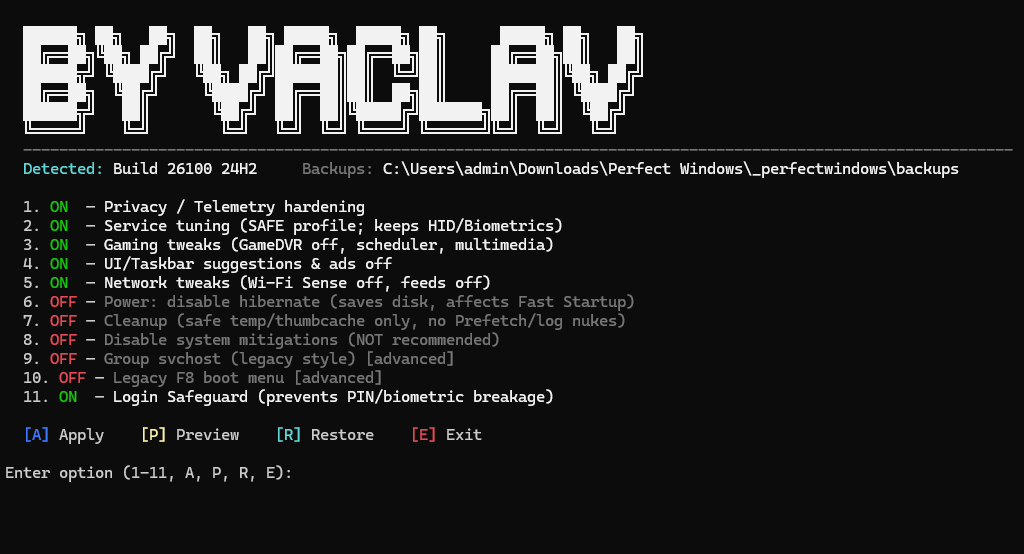
What's inside this script
Essentially, you're looking at an interactive menu. You run a single file, and it offers to toggle settings that Microsoft usually hides deep in the registry or group policies. The main feature here is reversibility: the author made sure you can roll back any change if something goes wrong.
Privacy and telemetry
The script removes advertising identifiers, disables diagnostic data collection, and gets rid of various Windows "tips." For developers, this is useful not only for anonymity but also for simple resource savings — less background traffic and disk access.
Service optimization
The approach here is fairly cautious. The script doesn't kill everything indiscriminately. For example, biometrics and HID device handling (mice, keyboards with extra buttons) remain untouched. But specific things like Wi-Fi Sense or the news feed that only distract in a work environment get disabled.
Gaming mode and performance
If you occasionally play games, the script helps disable GameDVR and tweak the task scheduler. There's also an option to disable hibernation. On modern NVMe drives, it's often unnecessary, and the hiberfil.sys file takes up quite a bit of space, especially if you have 32 or 64 GB of RAM.
How it works in practice
The project is written in classic Batch. This means you can open file Start Optimize Windows.bat in any text editor and personally check every line of code before running it. In an age when "optimization" software often turns out to be malware itself, this transparency is a huge plus.
The interface is as simple as it gets:
- Clone the repository.
- Run the batch file as administrator.
- Select the options you need (ON/OFF).
- Click "Apply" and go grab a coffee while it reboots.
Interestingly, the author added a preview feature with button [P]. This lets you see exactly which registry keys will be affected before the script starts changing them.
There's also a backup system in place. The script can create restore points automatically, so if something goes wrong, you can roll back to a previous state without losing everything.
Is it worth using
I often run into situations where similar "optimizers" break Windows Update or the Microsoft Store. In this project, the author tried to avoid this by marking dangerous settings (like disabling security patches/mitigations) in a separate "Advanced" section that they don't recommend touching without a clear understanding of the consequences.
The project doesn't claim to be the "killer" of all Windows problems, but it does an excellent job of quickly getting the system into a working state. If you're tired of searching for how to disable web search in the Start menu or how to remove the chat icon from the taskbar after every reinstall — this script will save you a ton of time.
Who will find it useful:
- Those who frequently deploy clean Windows 11 images on new machines.
- Users who are annoyed by pre-installed "junk" and ads in the interface.
- Owners of less powerful PCs where every extra background process counts.
One thing: before using it, definitely create a system restore point. The script can create backups to folder _perfectwindows, but having an extra safety net never hurts.
You can view the source code and download the script in the vacisdev/windows11 repository.
Related projects