Forget the Default Windows Search - How EverythingToolbar Changes the Way You Work with Files
Windows built-in search has long been the subject of jokes. You type the exact name of a project file or log, and the system takes several seconds to think before displaying Bing links. When your drive stores hundreds of thousands of small source files, the system indexer starts to noticeably lag.
Many of us solved this problem long ago by installing Everything from voidtools. This tool instantly reads the NTFS file system's MFT table, delivering search results in real time. However, launching Everything in a separate window or calling it with hotkeys isn't always convenient.
Developer Stephan Rumswinkel created the EverythingToolbar project. The utility brings Everything's capabilities directly into the Windows 10 and 11 taskbar. The result is a sleek search bar that blends seamlessly into the system interface and returns files in fractions of a millisecond.

Why you need a separate search on the taskbar
The project provides quick access to the file system without extra clicks or window switching. The utility keeps the input field always at hand.
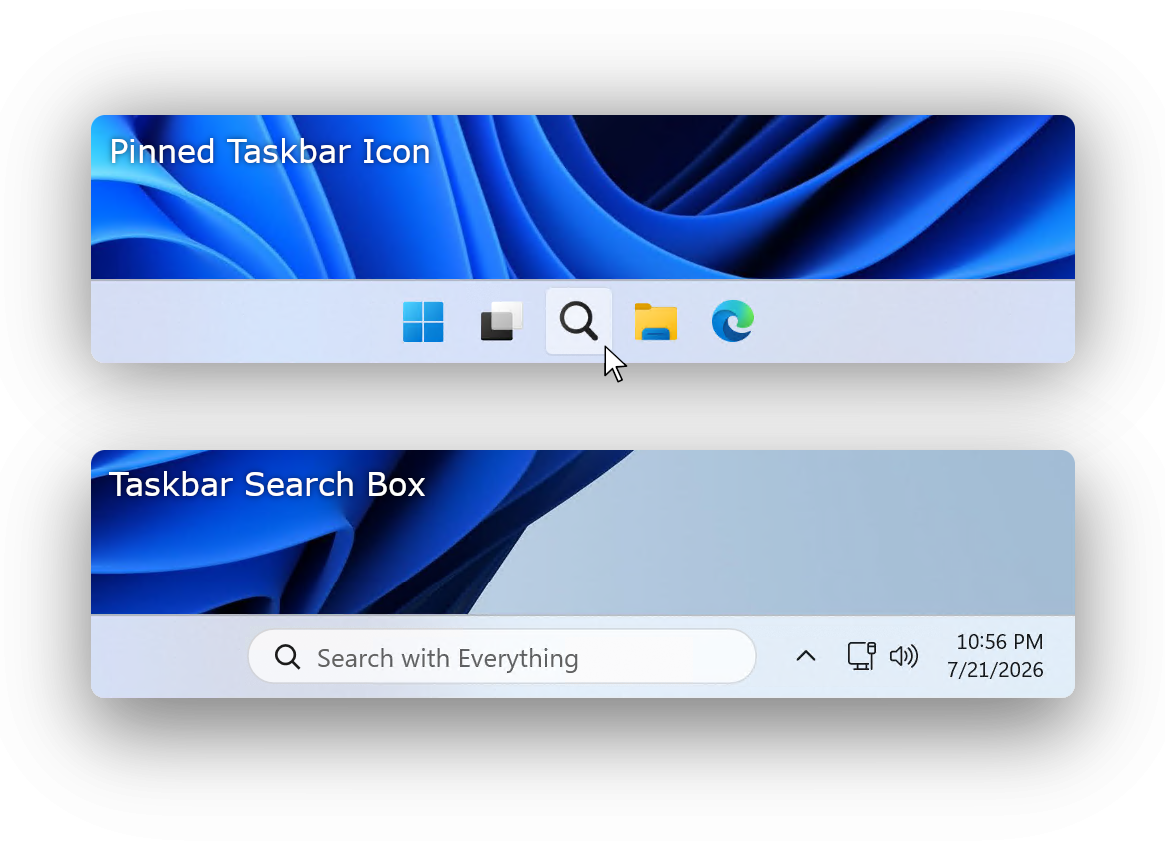
Depending on your OS version and preferences, two integration formats are available:
- A full-featured input field right on the taskbar for Windows 11.
- A compact icon that expands into a popup search window on click.
Windows 10 users can use the classic deskband mode, embedding the search field as a native toolbar. If you use tweak tools like ExplorerPatcher or StartAllBack, this mode works great on the eleventh version of the system as well.
The utility's appearance automatically adapts to system settings: both light and dark themes are supported.
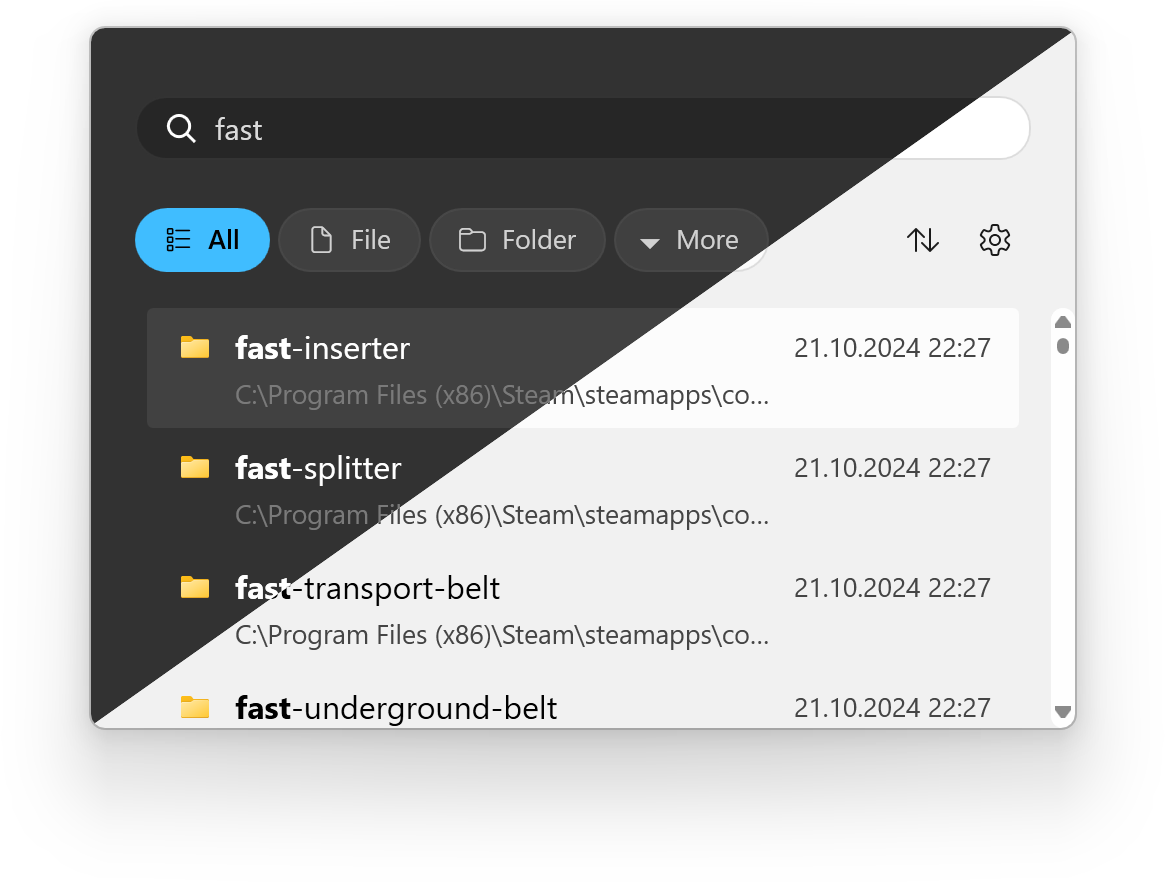
Working with filters and flags
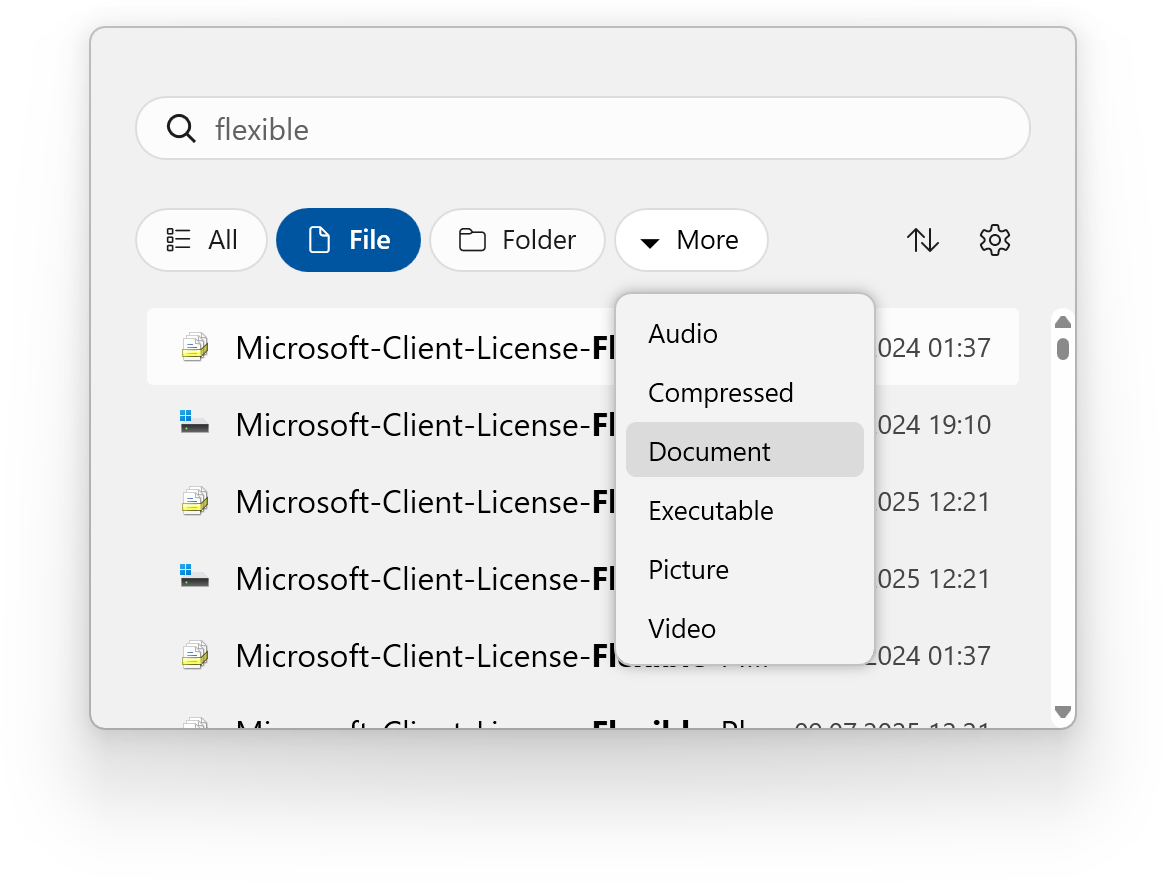
Regular search engines search everything, but developers often need to precisely locate a specific file. EverythingToolbar includes search flag toggles right next to the input field. You can instantly activate:
- Case sensitivity.
- Whole word matching only.
- Full path matching.
- Regular expression support.

Beyond basic flags, the utility syncs with custom filters from the original Everything. If you have configured rules to search only system logs, videos, or project source files, they will automatically carry over to EverythingToolbar.
Automating actions through regular expressions
An interesting feature of the project is custom actions in the context menu of results. You can create your own version of the "Open with" option and configure rules for its automatic triggering.
Settings define a regular expression. When a found file matches the rule, the utility immediately applies the selected action. For example, you can make files with the .log extension always open in a processing script, and .json in your internal editor.
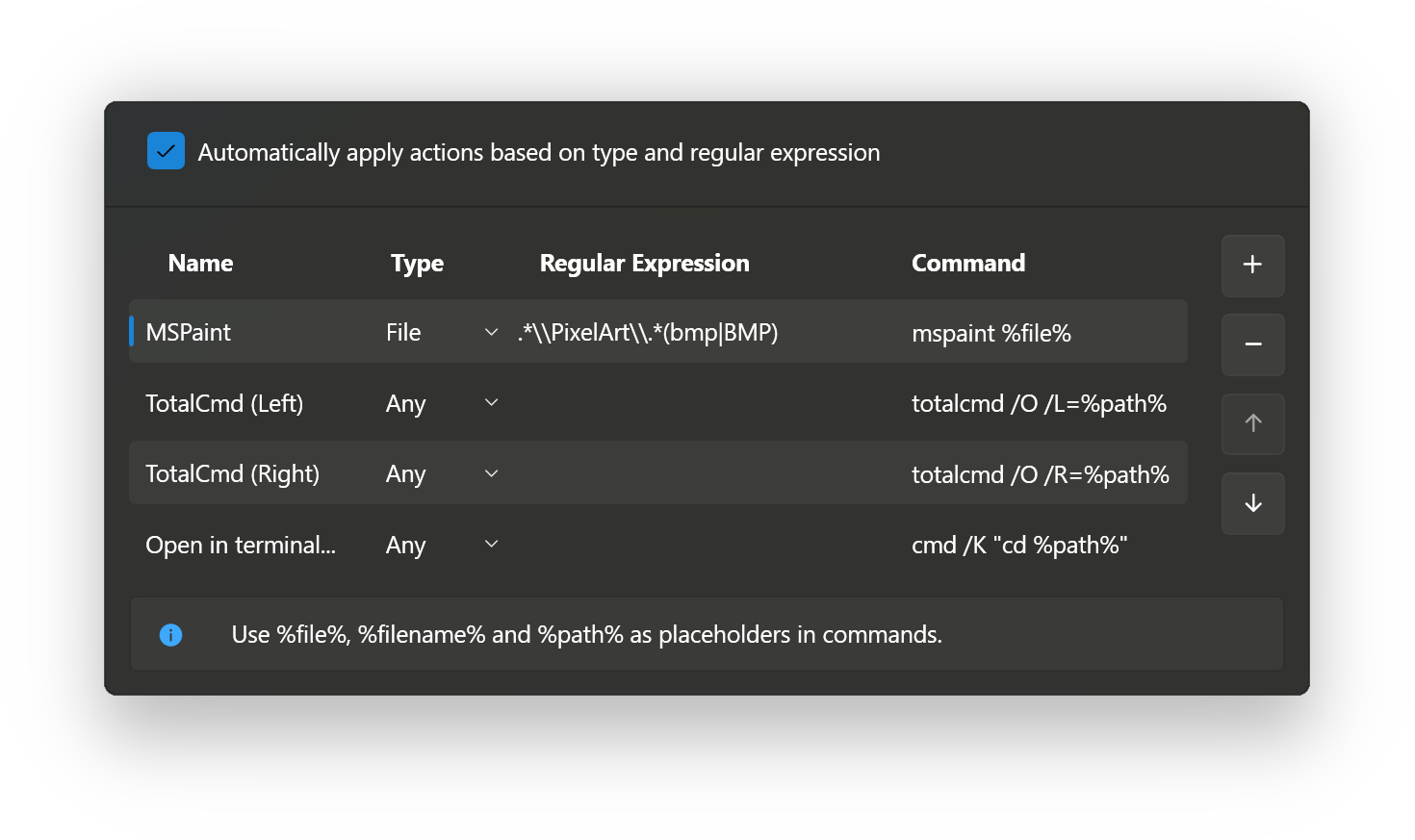
If you leave the regular expression field empty, the created action simply appears in the file's context menu.
Integration with previewers and convenient keyboard shortcuts
Additionally, EverythingToolbar has a built-in protocol for interacting with quick preview utilities like QuickLook or Seer. You select a file from the results list, press space — and instantly see the file contents in a popup window, whether it's code, an image, or a PDF document.
Files from search results can be easily dragged with the mouse directly into an IDE window, browser, or graphics editor.
You can fully control search with the keyboard:
Win + Alt + Sactivates the search bar from anywhere (the shortcut can be reassigned in settings).↑and↓move the cursor through the results list.Ctrl + ↑or↓switch through previous query history.Ctrl + Shift + Ccopies the full path of the selected file to the clipboard.Ctrl + Enteropens the folder containing the found file.Shift + Entertransfers the current query to the standard Everything window.TaborShift + Tabcyclically switch active filters.Spaceopens a quick file preview via QuickLook.
Installation and system requirements
Two conditions are required to run EverythingToolbar:
- Windows 10 or Windows 11 operating system.
- Everything version 1.4.1 or newer installed and running. Note that the Everything Lite version is not supported, as it has the required API stripped down.
The fastest way to install the project is through the winget package manager.
For Launcher mode:
winget install srwi.everythingtoolbar.launcher
For Deskband mode:
winget install srwi.everythingtoolbar.deskband
You can also download a ready-made installer from the project's releases page on GitHub.
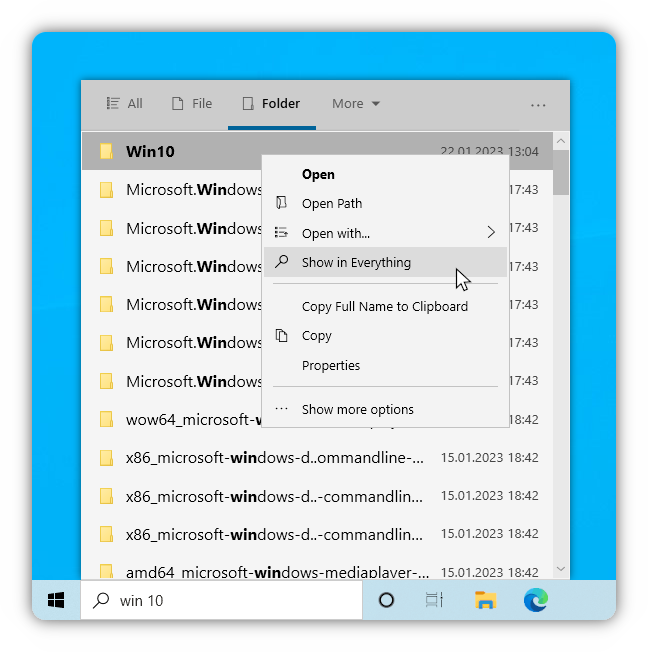
After installation, the setup wizard helps you choose the display format. If needed, the utility can work with named instances of Everything if you have multiple independent indexing services running.
Final thoughts
EverythingToolbar is a great example of how a small utility can noticeably improve the comfort of daily computer work. The project combines NTFS indexing speed with an ergonomic interface without overloading the system with extra services.
If you frequently search for files across drives and value speed, trying this tool is definitely worth it.
Related projects